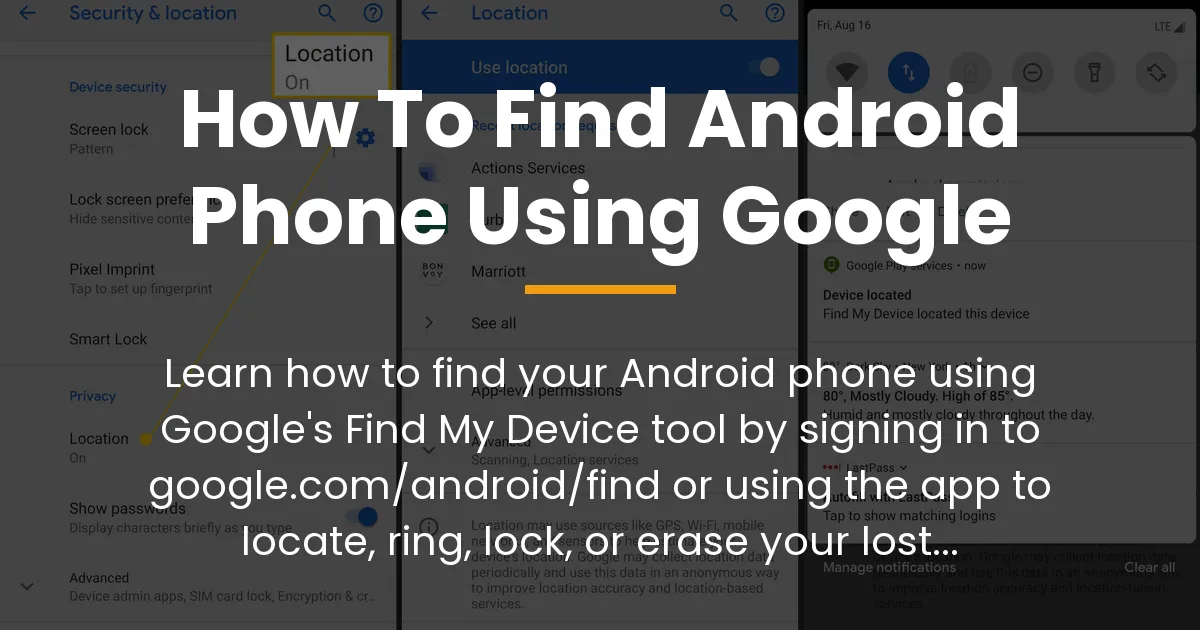
Losing your Android phone can be a stressful experience, but Google provides a free and powerful tool to help you find it. This guide will show you exactly how to find your Android phone using Google’s Find My Device service. We’ll cover immediate steps to locate your phone, essential settings to ensure it works, and smart responses for different situations so you can act quickly and effectively.
How to Find Your Android Phone Using Google Right Now
To find your Android phone using Google immediately, use the Find My Device tool by visiting google.com/android/find on any web browser or using the Find My Device app on another Android device and signing in with the same Google Account used on your lost phone. This tool lets you see your phone’s location on a map and gives you options to play a sound, lock the screen, or erase data remotely.
Use Find My Device Immediately
When you realize your phone is missing, the first thing to do is access Find My Device. You have two simple ways to do this, and both require you to sign in with your Google Account. This is the same account you use for Gmail, Play Store, and other Google services on your lost device.
If you have access to a computer or any device with a web browser, go directly to the Find My Device website. Just type google.com/android/find into the address bar and press enter. The site will load and prompt you to sign in.
On another Android phone or tablet, you can download the Find My Device app from the Google Play Store. Open the app and sign in with your Google Account. This app is designed for locating lost devices and works just like the website.
Once signed in, the service will show you a map with the location of your devices. Select your lost phone from the list on the left side of the screen. If your phone is on and connected to the internet, its location should appear on the map.
With your device selected, you will see three main options. The first is Play Sound, which will make your phone ring at full volume for five minutes even if it is set to silent. The second is Secure Device, which lets you remotely lock your phone with a custom message and phone number on the lock screen. The third is Erase Device, which permanently deletes all data from your phone to protect your privacy.
What to Do If Find My Device Shows No Location
If you sign in to Find My Device and see a blank map or a message saying “No location available,” don’t panic. This usually happens for one of three common reasons, and understanding them can help you figure out your next steps.
First, your lost device might be turned off, have a dead battery, or be offline without a Wi-Fi or mobile data connection. Find My Device needs an active internet connection to send its location to Google’s servers. If the phone is off, it cannot communicate its position.
Second, the Find My Device feature might never have been turned on in your phone’s settings. This is a critical setup step that many people overlook until it’s too late. Without this setting enabled, Google cannot track your device’s location remotely.
Third, location permissions for Google Play services might be disabled on your phone. These permissions allow Google to access your device’s location data for services like Find My Device. If they are off, the tool cannot retrieve the location.
To diagnose which case applies, think about when you last used your phone. If it was recently and the battery was healthy, the issue might be with the settings. If you suspect the battery is dead or it’s been days, the device is likely offline. You can also check if you previously enabled Find My Device by trying to locate another device you own with the same account.
Making Sure Your Phone Can Always Be Found
Preparing your phone before it gets lost is the best way to ensure Find My Device works when you need it. Taking a few minutes now to check your settings can save you a lot of trouble later. This proactive setup involves enabling key features that allow Google to locate your device.
The Essential Pre-Loss Settings Check
On your Android phone, open the Settings app and scroll to find Google. Tap on it, then look for “All services” or directly find “Find My Device” in the list. Here, you need to ensure that “Find My Device” is turned on. This setting is usually under “Personal & device safety” or a similar section.
Next, verify that location services are enabled. Go back to Settings, find “Location,” and make sure it is switched on. Also, check that Google Play services have location permissions. You can do this by going to Settings, then “Apps,” finding “Google Play services,” and checking “Permissions” to allow location access.
Finally, ensure your device is connected to your Google Account. Go to Settings, tap “Accounts,” and confirm your Google Account is listed and syncing. These steps together create the foundation for Find My Device to function properly, giving you peace of mind that your phone can be located if lost.
Keeping Your Phone Locatable in Daily Use
To maintain your phone’s ability to be found, keep Wi-Fi or mobile data turned on when possible. Find My Device uses these connections to transmit location data. While leaving them on might use some battery, modern Android devices manage power efficiently, so the impact is minimal.
Regularly charge your phone to avoid a dead battery in case of loss. If you know you’ll be in an area with poor connectivity, consider using features like offline maps or noting your location manually. However, for most daily use, simply having an active internet connection and enabled settings is enough.
Choosing the Right Action for Your Situation
Once you access Find My Device and see your phone’s location, you need to decide which action to take. The tool offers three options, and each is best suited for different scenarios. Your choice should depend on whether your phone is misplaced nearby, lost in a public place, or possibly stolen.
If Your Phone is Misplaced Nearby
When you think your phone is somewhere close, like in your home or office, use the Play Sound feature. This will make your phone ring loudly, helping you locate it by ear. The sound plays for five minutes and overrides silent mode, so you can hear it even if you had your phone on vibrate.
If the sound stops and you haven’t found it, you can trigger it again from the Find My Device interface. This is useful for searching under cushions or in bags. Remember, this action only works if your phone is on and connected to the internet, so if it’s off, you might need to rely on physical searching.
If Your Phone is Lost in an Unsecure Location
If your phone is lost in a place where others might find it, like a café or park, use the Secure Device option. This remotely locks your screen with a password or pin if you haven’t set one already. You can also add a custom message with a phone number where you can be reached, encouraging anyone who finds it to contact you.
Secure Device does not erase your data, so you can still track the phone’s location if it moves. It simply prevents unauthorized access to your personal information. This is a safe middle ground when you’re unsure if the phone is stolen but want to protect your privacy while trying to recover it.
If You Believe Your Phone Was Stolen
In the serious case where you think your phone was stolen, consider using the Erase Device option as a last resort. This permanently deletes all data from your phone, including apps, photos, and accounts, to prevent theft of your personal information. However, once you erase the device, Find My Device can no longer locate it, so use this only if you’re sure recovery is impossible.
Before erasing, try using Secure Device first to lock the phone and display a recovery message. Then, contact local authorities to report the theft and provide them with your phone’s location data from Find My Device. You should also inform your mobile carrier to block the device from being used on networks. Only after these steps should you proceed with erasing if sensitive data is at risk.
Finding More Than Just Your Phone
Google’s Find My Device network extends beyond phones to help you locate other items. This ecosystem includes tablets, Wear OS smartwatches, and compatible Bluetooth accessories like headphones or tags. By using the same Find My Device interface, you can see all your devices and items on one map.
For example, if you lose your Pixel Buds or a Bluetooth tracker, you can use Find My Device to play a sound on them or see their last known location. The “Items” tab in the app or website lists these accessories, making it easy to manage everything from one place. This integration is part of Google’s effort to create a seamless safety net for all your gadgets.
To use this for accessories, ensure they are connected to your Google Account and have the necessary settings enabled. Similar to phones, they need to be powered on and within Bluetooth range of other devices in the Find My Device network to update their location. This expanded capability turns Find My Device into a central hub for tracking your valuable belongings.
Frequently Asked Questions
Can I use Find My Device if my phone is turned off or has a dead battery?
No, Find My Device cannot locate a phone that is turned off or has a dead battery because the device needs power and an internet connection to send its location. However, you might see the last known location before it shut down.
Does this work if my lost phone is not connected to Wi-Fi or mobile data?
No, Find My Device requires an active internet connection via Wi-Fi or mobile data to transmit location updates. If the phone is offline, the tool will show the last location where it was online.
What’s the difference between ‘Lock’ and ‘Erase Device’ and when should I use each?
Lock (Secure Device) remotely sets a password on your phone and displays a recovery message without deleting data, ideal for when you hope to recover it. Erase Device permanently removes all data to protect privacy, used only as a last resort if the phone is stolen and unrecoverable.
Can someone else use Find My Device to track my location without my password?
No, accessing Find My Device requires signing in with your Google Account credentials. Without your password, others cannot track your phone’s location through this tool, ensuring your data privacy.
I have a Google Pixel, Samsung Galaxy, or other brand. Does the process change?
The basic process is the same for all Android phones using Google services, but some brands like Samsung may have additional features in their own apps. Find My Device works across Android devices with Google Play services enabled.
How do I turn on the necessary settings for Find My Device?
On your phone, go to Settings, find Google, then “Find My Device,” and ensure it is turned on. Also, enable location services and grant location permissions to Google Play services for it to function properly.
Can I use Google Assistant or Google Maps to find my phone instead?
Yes, you can ask Google Assistant on another device to “find my phone,” which will trigger Find My Device to ring it. Google Maps does not directly locate phones, but Find My Device is the dedicated tool for this purpose.
What should I do after I recover my phone to keep it secure?
Once you recover your phone, change your Google Account password if you suspect unauthorized access, review your security settings, and ensure Find My Device is still enabled. Also, consider setting up a screen lock for future protection.
Can I use this method to find a family member’s Android phone?
Yes, if you are signed in to their Google Account or have been added as a trusted contact in their Find My Device settings. Otherwise, they need to share their location or account access with you for tracking.
Will using Find My Device drain my phone’s battery?
Find My Device has minimal impact on battery life because it only occasionally sends location updates. The tool is designed to be efficient, so keeping it enabled does not significantly drain your battery during normal use.
Knowing how to find your Android phone using Google is a valuable skill that combines immediate action with smart preparation. By using Find My Device and ensuring your settings are correct, you can quickly locate, secure, or erase your lost device. Take a moment now to check your phone’s settings so you’re ready for any situation, giving you control and peace of mind.