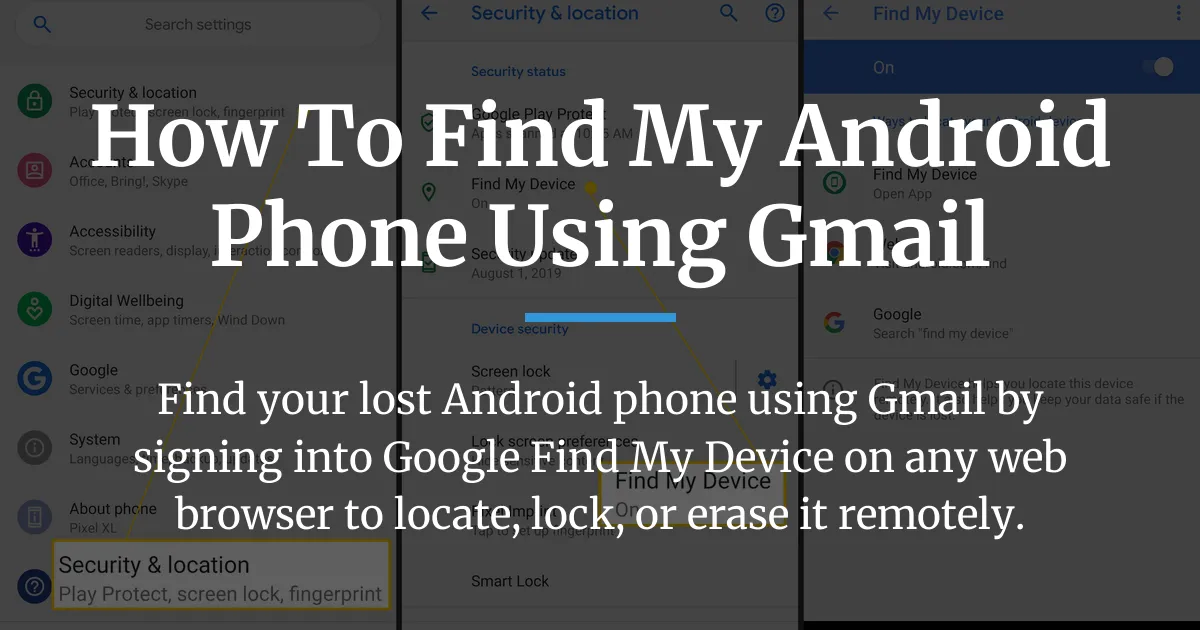
Losing your Android phone can be a stressful experience, but using your Gmail account provides a reliable way to locate it quickly. This guide explains exactly how to find my android phone using gmail by walking you through the immediate steps, what to do if things don’t work, and how to protect your personal data. The process hinges on Google’s Find My Device service, which uses your Google Account credentials—often the same as your Gmail—to track your phone on a map, play a sound, lock the screen, or even erase information remotely. Success, however, depends heavily on having the right settings enabled before your phone goes missing, so we’ll also cover how to prepare for the future.
How to Find My Android Phone Using Gmail
To find your lost Android phone using Gmail, you need to access Google’s Find My Device service from any web browser or another device. This is the core action to take as soon as you realize your phone is missing, and it involves using your Gmail address and password to sign in to your Google Account. The service will then attempt to locate your device and display its position on a map if possible, giving you options to secure it. Here are the detailed steps to follow right now.
- On any computer, tablet, or borrowed smartphone, open a web browser like Chrome, Safari, or Firefox. You do not need the Gmail app or any special software—just a browser will work.
- Navigate to the Google Find My Device website by typing “find my device” into the search bar or going directly to the URL. This is the official hub for locating Android devices linked to your account.
- Sign in using the Gmail address and password that are connected to your lost Android phone. This step is crucial because your Google Account serves as the key to accessing all your devices, and it must match the account on the lost phone.
- Once you are signed in, the service will automatically scan for your device. If it is online and set up correctly, you will see your phone’s approximate location on a map, along with details like battery level and network status. From here, you can choose to play a sound, lock the device with a message, or erase its data entirely.
These steps are straightforward, but they assume your phone meets certain conditions. If Find My Device cannot locate your phone, it will show an error message like “offline” or “location unavailable,” which means you need to understand the underlying requirements. We’ll explore those next to help you diagnose the issue and take alternative actions.
Critical Checks Before You Proceed
After attempting the steps above, you might successfully see your phone’s location or encounter a frustrating dead end. Understanding why Find My Device works or fails is essential to managing your expectations and deciding on your next move. The service relies on several prerequisites that must have been enabled on your phone before it was lost, and if any are missing, tracking becomes difficult or impossible. Let’s break down each factor so you can identify what might be wrong.
Why Your Phone Might Not Appear on the Map
First, your lost phone must be turned on and have some battery life remaining. If the battery is completely drained or the device is powered off, it cannot communicate with Google’s servers or transmit its location. In such cases, Find My Device might display the last known location before the phone went offline, but this could be outdated.
Second, the phone must be signed into your Google Account, which is typically the same as your Gmail address. Without this active sign-in, the device is not linked to your account, and Find My Device cannot recognize it. If you recently changed your password or logged out, this could break the connection.
Third, location services must be enabled on the phone. This setting allows the device to use GPS, Wi-Fi, and mobile networks to determine its precise position. If location was turned off, the phone might still report a general area based on network data, but accuracy will be reduced.
Fourth, Google Find My Device must be activated in your phone’s settings. This is a specific toggle that grants permission for remote tracking and management, often found under Security or Google services. If it was never turned on, the service cannot access your device.
Finally, the device needs an internet connection via mobile data or Wi-Fi to send its location updates to Google. Without internet, it cannot relay its current status, though newer Android versions can use the Find Device network—a crowdsourced system—for offline tracking. However, this requires other Android devices nearby to be part of the network and may not always work.
If any of these conditions are not met, finding your phone using Gmail becomes challenging. This highlights the critical gap in many guides: they assume setup is already done. By checking these factors, you can understand why the service might fail and focus on securing your data instead.
Securing Your Lost Android Device
Based on the outcome of your Find My Device attempt, you can choose the best course of action to protect your information and potentially recover your phone. Whether you see a location or not, there are steps you can take to minimize risk and increase the chances of getting your device back. This section guides you through the decision-making process, offering clear pathways for different scenarios.
If You Can See the Location on the Map
When Find My Device successfully displays your phone’s location, you have several tools at your disposal. Use the map to navigate to the approximate area—the service often provides directions via Google Maps. Once you are nearby, if you believe the phone is within earshot, trigger the “Play Sound” function. This will make your phone ring at full volume for five minutes, even if it was set to silent or vibrate mode, helping you locate it under cushions or in bags.
If you suspect someone else has your phone, remotely lock it with a custom message. This option lets you set a new lock screen password and display a note with your contact information, such as a phone number or email address. A good Samaritan who finds it can then reach you without accessing your personal data. This lock will remain active until you physically unlock the device with your password.
In extreme cases where recovery seems unlikely, you can choose to erase your device remotely. This will delete all personal data, including apps, photos, and accounts, restoring the phone to factory settings. Be cautious, though, because after erasure, you can no longer track the phone’s location or use Find My Device on it. This is a last resort to prevent data theft.
If the Location is Unavailable or Offline
If Find My Device indicates your phone is offline or the location is unavailable, don’t lose hope. You can still take proactive security measures to safeguard your information. Start by enabling secure lock, which lets you set a lock screen message with your contact details. Even if the phone is offline, this command will execute once it connects to the internet, deterring unauthorized access.
Consider using the erase function as a precautionary step. If you believe your phone is stolen or irretrievable, remote erasure can protect your sensitive data. The command will queue and execute when the device goes online, ensuring your information is wiped clean. Keep in mind that this action is irreversible, so use it only when necessary.
Additionally, check for the last known location on the map. Find My Device might show where your phone was before it lost connection, which could give you a clue about where to search. You can also contact your mobile service provider to report the loss—they may help by blocking the SIM card or tracking the device through network towers, though this varies by carrier.
Ensuring It Works Next Time
To avoid the anxiety of a lost phone in the future, take time now to verify that your current and future Android devices are properly configured for tracking. This forward-looking approach ensures that Find My Device will work seamlessly when you need it most. By enabling a few key settings and understanding the ecosystem, you can turn your Gmail account into a powerful tool for device security.
On your Android phone, open the Settings app and navigate to the Google section or Security settings. Look for “Find My Device” and ensure it is turned on. Also, check that device administrator permissions are enabled for this service, as this allows remote locking and erasing. These steps are simple but often overlooked, so make it a habit to confirm them periodically, especially after software updates.
Opt into the Find Device network for offline tracking capabilities. This feature uses a crowdsourced network of Android devices to help locate your phone even when it’s not connected to the internet. When enabled, your device can anonymously communicate with nearby Android phones or tablets to relay its location, increasing the chances of recovery. However, this relies on other users participating in the network, so results may vary by location.
Keep your phone updated with the latest Android software, as improvements to location services and security are frequently included in updates. Regular updates also ensure compatibility with new features in Find My Device, such as enhanced accuracy for recent locations. Additionally, consider adding secondary trusted devices, like a tablet or Wear OS watch, to your Google Account—this creates a backup way to access Find My Device if your primary phone is lost.
Frequently Asked Questions
Can I find my Android phone using the Gmail app on another phone?
No, you cannot use the Gmail app directly to find your phone. The Gmail app is for email only. Instead, you need to use a web browser to access Google Find My Device or download the Find My Device app on another Android device, signing in with your Google Account credentials—which are the same as your Gmail login.
What is the difference between using Gmail and using Google Find My Device?
Gmail is your email service, while Google Find My Device is a security tool that uses your Google Account to locate and manage devices. When you use your Gmail address to sign in, you are accessing your broader Google Account, which powers Find My Device. Think of Gmail as one part of your account, and Find My Device as another feature tied to it.
Can I use this method to find a lost Wear OS watch or Bluetooth headphones?
Yes, Google Find My Device can also locate compatible Wear OS watches and some Bluetooth accessories if they are linked to your Google Account and within range of your phone or the Find Device network. However, tracking for accessories may be less accurate and depends on their connection status.
What happens if someone finds my phone and turns it off or removes the SIM card?
If the phone is turned off, Find My Device cannot locate it until it is powered on again. Removing the SIM card disables mobile data, but if the phone connects to Wi-Fi, it might still be located. Offline tracking via the Find Device network may help in some cases by using nearby devices to detect its presence.
Will erasing my phone remotely also remove it from my Google Account?
Yes, remotely erasing your phone will delete all data, including your Google Account from the device. After erasure, the phone is reset to factory settings, and you will need to sign in again with your account to use it. This action severs the link with Find My Device for future tracking.
Is Google Find My Device free to use, or is there a subscription?
Google Find My Device is completely free to use. There are no charges for locating, locking, or erasing your device remotely. It is a built-in service for Android users with a Google Account, so you don’t need to pay for any subscriptions.
Can I use this to find a family member’s lost Android phone?
Yes, if you have their permission and their Google Account credentials, you can sign in to Find My Device to locate their phone. Alternatively, you can use Google’s family sharing features to manage devices together, allowing you to see locations without sharing passwords.
How accurate is the location shown on the Find My Device map?
The location accuracy varies based on factors like GPS signal, Wi-Fi connectivity, and network conditions. In urban areas with strong signals, it can be within a few meters, but in rural or indoor settings, it might show a broader area. The map often provides a radius indicator to show possible error margins.
What should I do after I physically recover my lost phone?
Once you have your phone back, immediately sign in to your Google Account if it was erased. Check for any unauthorized access and change your passwords for sensitive apps. Review your security settings to ensure Find My Device is still enabled, and consider updating your lock screen for added protection.
Does this work if my phone was factory reset by someone who found it?
If your phone is factory reset by someone else, it will be removed from your Google Account, and Find My Device will no longer work. However, if you had a lock screen and Google Account protection enabled before the reset, the phone may require your account credentials to set up again, acting as a theft deterrent.
In conclusion, knowing how to find my android phone using gmail is a vital skill for any Android user. By following the steps outlined and ensuring your device is prepared with the right settings, you can quickly locate and secure your phone in case of loss. Always remember to enable Find My Device and keep your Google Account secure for peace of mind in our connected world.