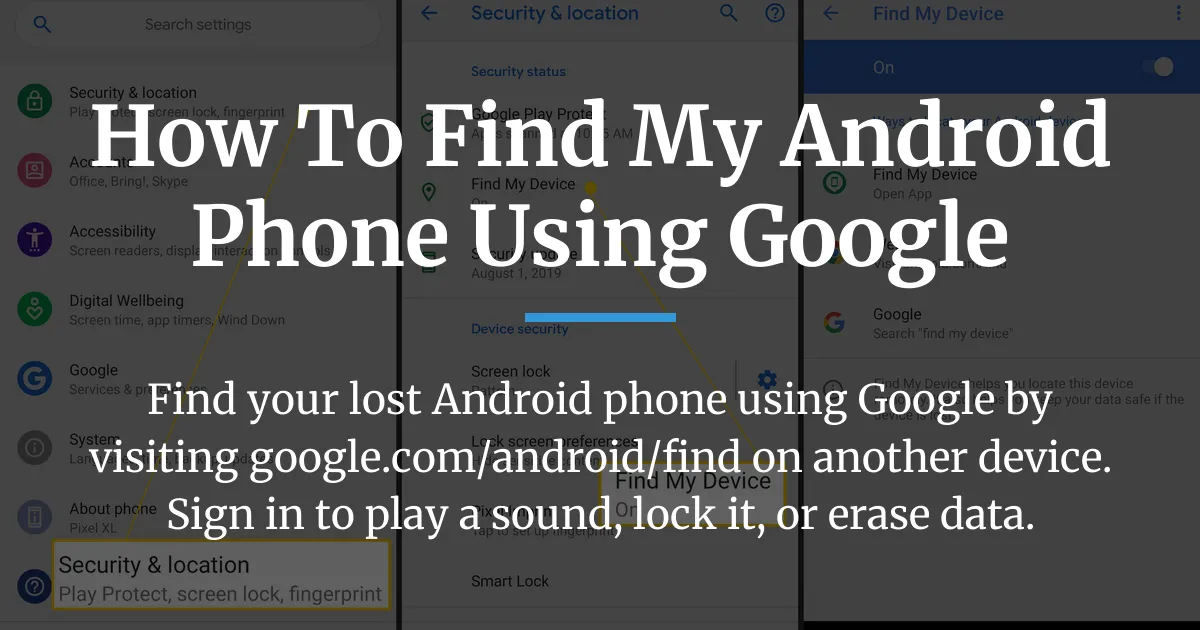
If your Android phone has gone missing, you can find it right now using Google’s free service. The immediate solution is straightforward, but understanding how it works and preparing for the worst can transform a moment of panic into a controlled response. This guide provides the clear steps to locate your device, explains the technology so you know what to expect, and shows you how to set things up so you’re never caught unprepared.
Locate Your Phone Right Now
When you realize your phone is lost, time is of the essence. You need to act quickly using a device you still have access to, like a laptop, a tablet, or a friend’s phone.
The single most important action is to get to Google’s Find My Device service. This is your central hub for locating and securing your lost Android device, tablet, or even connected accessories.
The Immediate Steps on Another Device
You have two main options to start your search, and both lead to the same place.
- On a computer or any other device with a web browser, go directly to the website google.com/android/find. This is the fastest route.
- Alternatively, if you have another Android device, you can download the “Find My Device” app from the Google Play Store. This app provides the same functions in a mobile-friendly format.
Once you are on the website or in the app, you must sign in. Crucially, use the exact same Google Account that is the main account on your lost phone. This link between your account and your device is what makes everything work.
After you sign in, the service will show you a map. On the left side of the screen, a menu will list the Android devices linked to your Google Account. Select the name of your lost phone from this list.
The map will then update. You will see one of two things: a live location if the phone is on and connected, or the last known location if it is offline. With your device selected, you now have three powerful actions you can take.
Your Three Remote Control Options
These buttons on the screen give you control over your missing phone from miles away.
First, you can choose “Play Sound.” This will make your phone ring loudly for five minutes, even if it was set to silent or vibrate mode. This is perfect for when you think it’s buried in a couch cushion or left in another room.
The second option is “Secure Device.” This function locks your phone’s screen immediately with your existing PIN, pattern, or password. More importantly, it lets you display a custom message and a phone number on the lock screen. You can add a note like, “If found, please call this number,” to help a good Samaritan return it.
The final option is “Erase Device.” This is the nuclear option and should only be used if you believe the phone is stolen and you have no hope of recovery. It permanently deletes all apps, photos, and personal data from the phone’s internal storage to protect your privacy. Be very certain, as this action is final and you will no longer be able to track the phone afterwards.
How Google Finds Your Android Device
Knowing the basic steps is one thing, but understanding what is happening behind the scenes will help you make sense of the results you see and explain why things sometimes do not work as expected.
Google’s Find My Device is not magic. It relies on a combination of signals from your phone and specific permissions you have granted.
The Technology Behind Location Tracking
Your phone calculates its location using several methods together for the best accuracy. The primary tool is GPS, which uses satellites to pinpoint your position outdoors.
For indoor locations or to save battery, your phone uses nearby Wi-Fi networks and cell towers to estimate where it is. These signals create the blue dot you see on the map.
It is critical to distinguish between two types of locations the service shows you. A “Live Location” is a real-time feed that updates as the device moves. This only works if the lost phone is powered on, has a mobile data or Wi-Fi connection, and has location services enabled.
More often, especially if the phone has been lost for a bit, you might see a “Last Known Location.” This is the last spot where your phone had an internet connection and successfully sent its coordinates to Google’s servers. It could be from minutes or even hours ago.
Critical Considerations for Accurate Tracking
This is where many people get frustrated. The service requires several things to be true to provide that perfect live location. If any one of these is missing, your ability to find the phone changes.
Your phone needs to be turned on. If the battery is completely dead or someone has powered it off, it cannot send a signal. However, you will still see the last location it reported before it shut down, which can be a vital clue.
It must be connected to the internet. This means it needs an active mobile data plan or be within range of a known Wi-Fi network it can join automatically. Airplane mode or being in a basement with no signal will prevent a live connection.
Location services must be enabled on the lost device. This is the master switch that allows apps like Find My Device to access the phone’s GPS and location data.
Perhaps the most overlooked requirement is a system-level permission. In your phone’s settings, the Find My Device service must be granted “Device administrator” or similar rights. This special permission allows it to lock or erase your phone remotely. It is usually turned on by default, but some users disable it for battery or privacy reasons without realizing the consequence.
What to Do If Your Device Appears to be Moving
Seeing your lost phone’s location move on the map is a stressful scenario. It strongly suggests someone else has it. Your first priority is your personal safety. Do not try to confront anyone directly.
If you have not already, use the “Secure Device” feature immediately to lock the screen with a message. This protects your data and might prompt the person to contact you.
Take a screenshot of the map showing the moving location. This provides evidence. Then, contact your local law enforcement agency. Provide them with the screenshot, your phone’s make and model, and its unique IMEI number, which you can get from your phone’s original box or your mobile carrier’s account page. They can advise you on the next steps.
Preparing Your Phone Before It’s Lost
The best time to solve a problem is before it happens. Taking a few minutes now to check your settings can make the difference between a quick recovery and a permanent loss.
Think of this as a digital safety checkup for your phone.
Non-Negotiable Settings to Enable Today
Open the Settings app on your Android phone and follow this quick checklist. First, ensure “Location” is turned on. You can often find a quick toggle for this in your notification shade.
Next, search within Settings for “Find My Device.” Tap on it and make sure the main switch is set to “On.” On the same screen, tap “Find My Device settings” or a similar option to ensure the service is allowed to use your phone’s location all the time, not just when the app is open.
Finally, on that same settings page, look for a section about device administrator rights. Confirm that “Find My Device” is listed and enabled as an administrator. This is the permission that gives it the power to lock your screen remotely.
Many people worry that having location on all the time will destroy their battery life. Modern Android phones are very good at managing this efficiently. The small battery trade-off is insignificant compared to the ability to find a lost or stolen device worth hundreds of dollars.
Advanced Ecosystem Management
Google’s Find My Device network is not just for phones. It has grown into a hub for locating a wide range of items connected to your Google Account.
This includes other Android devices like tablets and Wear OS smartwatches. They will all appear on the same map when you sign in, giving you a complete view of your tech.
You can also add compatible Bluetooth accessories. For instance, certain models of Pixel Buds or headphones from other brands can be registered. If they are separated from your phone, their last known location will show on the map. You can even make them play a sound to find them under a pile of clothes.
The service also supports dedicated Bluetooth trackers, like the Chipolo tag. Once linked to your account, you can attach one to your keys or wallet and see their location in the same Find My Device hub.
For families, this system is incredibly useful. If you share your location with a family member through Google’s ecosystem or if you manage a child’s device with Family Link, you may be able to see the location of their device from your own account as well, providing peace of mind.
When You Cannot Find Your Android Phone
Sometimes, despite your best efforts, a phone is gone for good. In these cases, your goal shifts from recovery to damage control and protecting your personal information.
Understanding Remote Lock and Erase
If you have accepted that you will not get the physical device back, your digital actions are your last line of defense. We already covered the “Secure Device” lock function, which is your first move.
The “Erase Device” command is your final step. It is important to know what this does and does not do. It will wipe the internal storage clean, restoring the phone to a factory-like state. Your photos, messages, apps, and login information will be deleted.
This protects your data from a stranger. However, the erase command will only work if the phone ever comes back online. If the thief keeps it in a Faraday bag or never connects it to the internet, the command will sit and wait. Also, remember that a remote erase will remove Find My Device itself, so tracking will stop permanently.
Your lock screen remains your constant ally. As long as you have a strong PIN, pattern, or password, a factory reset performed from the recovery menu on the physical device will usually require your Google Account password to complete. This “Factory Reset Protection” is a powerful theft deterrent.
Next Steps After Digital Actions
Once you have taken remote action, there are practical real-world steps to follow. Contact your mobile carrier immediately. Report the phone as lost or stolen. They can suspend service to the SIM card, preventing anyone from running up charges on your account.
This also blocks the phone from being used on most major networks. Gather your phone’s details, especially the 15-digit IMEI number, and file a report with your local police. Having an official report can be helpful for insurance claims.
Finally, change the passwords for your most important accounts. Start with your email and financial apps. Since you were likely logged into these on your phone, this secures your digital life even if your phone’s data is somehow compromised.
Frequently Asked Questions
Does Find My Device work if my phone is turned off or the battery is dead?
If the phone is off or dead, you cannot get a live location. However, the service will show you the last known location it reported before it lost power, which can still be very helpful for finding it.
Can I use Find My Device on an iPhone to find my Android phone?
Yes, you can. You simply need to use a web browser on the iPhone, like Safari, and visit the website google.com/android/find. Sign in with your Google Account to locate your Android device.
Will the person holding my phone see that I’m trying to locate it?
If the phone is on and unlocked, they might see a notification that location is being accessed. If you lock it remotely with a message, your message will appear on the lock screen, so they will know you are looking for it.
Is using Google Maps to find my phone the same as using Find My Device?
No, they are different. Find My Device is specifically designed to locate, ring, lock, and erase your devices. Google Maps has a “Share location” feature for people, but it is not meant for finding a lost device.
What’s the difference between remotely locking my phone and erasing it?
Locking secures your phone with your PIN and lets you display a contact message. Erasing permanently deletes all your personal data. Always try locking first, as you can still track a locked phone, but you cannot track an erased one.
Do I need to have the Find My Device app installed on the phone I lost?
No, you do not need the app installed separately. The service is built into the core system of all modern Android phones. You only need the app on a *different* Android device if you want to use it as a locator tool instead of a web browser.
Can I use this method to find a family member’s Android phone?
You can only find a phone if you are signed into the Google Account that is on that device. For a child’s device managed with Family Link, you can locate it from your parent account. For another adult, they would need to share their location with you or their account details.
What should I do if the location shown is inaccurate or very old?
An old or inaccurate location usually means the phone is offline. The map shows the last spot it had an internet connection. Go to that general area and use the “Play Sound” feature. If it comes back online, the sound will trigger and the location will update.
Is my data privacy protected when I use Google to find my Android phone?
The service is designed for your security. Only you can see your device’s location when signed into your Google Account. Google states that location data is encrypted and not shared with other users.
Will Find My Device work if my phone is factory reset by someone else?
If someone tries to factory reset your phone from the recovery menu, Factory Reset Protection should ask for your Google Account password. If they do not know it, the phone will remain locked and largely unusable, and you will likely lose the ability to track it.
Knowing how to find your Android phone using Google is a blend of immediate action and smart preparation. Start by using the Find My Device website or app right now to check on your phone’s location and secure your settings. Then, take a moment to ensure your device and your family’s devices are properly set up within the Find My Device network. This simple preparation turns a powerful crisis tool into a seamless part of your digital safety net, giving you confidence and control over your most important devices.