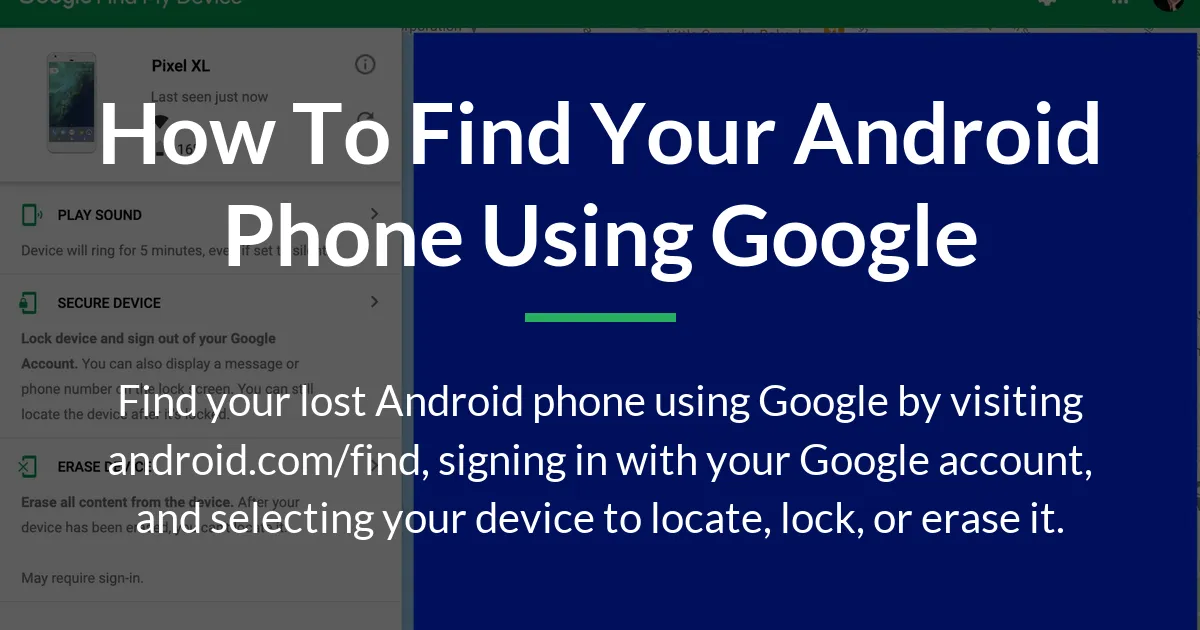
Losing your phone can send a jolt of panic through you. That feeling is completely normal, but there’s a direct and official solution built into every Android device. The definitive answer to how to find your android phone using google is to use Google’s own Find My Device service.
This guide will walk you through the immediate steps to locate your phone right now, explain the powerful tools you have once you find it on a map, and, most importantly, show you how to set things up so it works perfectly when you need it most. We will also cover what to do if technology can’t help and how this system connects to your other gadgets.
Find Your Phone Right Now
If your phone is lost and you need to find it immediately, follow these steps. All you need is access to a web browser on a computer, tablet, or even a friend’s phone.
- Go to the Find My Device website. Open any web browser and navigate to android.com/find. This is Google’s official hub for locating lost devices.
- Sign in to your Google Account. You must use the exact same Google account that is signed in on your lost Android phone. This is the most critical step for the service to work.
- Select your lost device. If you have multiple Android devices, they will appear in a list at the top of the screen. Click on the name of the phone you are trying to locate.
- View the location on the map. The service will communicate with your phone and display its last known location on a map. The location accuracy can vary based on several factors we will discuss later.
Once your device appears on the map, you are presented with three powerful options on the left side of the screen to control it remotely.
Control Your Lost Device Remotely
Seeing your phone’s location is just the first step. The real power comes from the actions you can take from this screen, even if the phone is far away from you.
Play a Sound on Your Phone
This is the quickest way to find a phone that is nearby but misplaced, like under a couch cushion or in another room. Clicking “Play sound” will force your phone to ring loudly at full volume for five full minutes.
It works even if your phone was set to silent or vibrate mode, overriding those settings. This makes it perfect for pinpointing a device that is close by but out of sight.
Secure Your Device with a Lock
If you believe your phone is not in a safe place, use the “Secure device” option. This remotely locks your phone with your existing PIN, pattern, or password.
You can also add a custom message and a phone number to the lock screen. A message like “This phone is lost. Please call 555-1234 for a reward” can greatly increase your chances of getting it back from a good Samaritan.
Erase Your Device Completely
This is the last-resort nuclear option. “Erase device” will permanently delete all apps, photos, settings, and personal data from your phone’s internal storage to protect your privacy.
It is crucial to understand that after you erase the device, Find My Device will no longer be able to locate it. The connection is permanently severed. Only use this if you are certain the phone is stolen and you have no hope of physical recovery.
Why Find My Device Might Not Work
This is the most frustrating moment: you follow the steps, but the map is blank, shows an old location, or says your device can’t be found. Understanding why this happens is key to managing your expectations and preparing for the future.
For Find My Device to work in real-time, your lost Android device must meet several conditions simultaneously. It needs to be turned on, have some battery charge remaining, and be connected to the internet either through mobile data or Wi-Fi.
Location services must also be active on the phone. Most importantly, it must be signed into the Google Account you are using on the Find My Device website.
The Importance of Store Recent Location
This is a setting very few people enable before they need it, and it is the answer to a common complaint. Inside your Google Account settings on your phone, there is an option called “Store recent location.”
When this is turned on, your phone regularly saves its location to Google’s servers. If your phone loses power or goes offline when lost, Find My Device can still show you this last saved location, which might be much more recent and useful than a location from days ago.
You cannot turn this on after your phone is lost. It is a preventative setting, which is why it is featured so prominently in the preparation section below.
If Your Phone is Offline or Dead
Modern Android phones support a feature called offline finding. If your phone is off or not connected to the internet, it can sometimes be detected by nearby Android devices using Bluetooth.
Those devices then anonymously relay your phone’s location to the network. However, this requires your phone to have some battery and for other Android users to be nearby, so it is not guaranteed.
If your phone’s battery is completely dead, the harsh reality is that no software can track it. All electronic tracking requires power. In this case, you must rely on the “last known location” provided by the “Store recent location” feature and move to non-technical recovery steps.
Prepare Your Phone Before You Lose It
A few minutes of setup now can save you hours of panic and helplessness later. Think of this as an insurance policy for your phone. Complete this one-time checklist to ensure Find My Device works flawlessly.
First, verify the core services are active. On your Android phone, open Settings, then tap “Google,” followed by “All services.” Find and select “Personal & device safety” and then “Find My Device.”
Ensure the main “Find My Device” switch is on. Also, on this same screen, tap “Use Find My Device” and make sure “Allow device to be located” is enabled. While you are here, go back to your main Google Account settings and enable “Store recent location.”
Finally, make sure your phone has a secure screen lock set up, such as a PIN, pattern, or password. A remote lock is useless if your phone can be accessed by simply swiping the screen.
Your Larger Finding Network
Google’s finding technology is not just for phones. The same Find My Device interface is designed to be a central hub for locating many of your personal gadgets, creating a cohesive safety net for your digital life.
When you sign into android.com/find, you will see a list of all your eligible devices. This can include your Android tablet, paired Wear OS smartwatches, and compatible headphones that support Fast Pair.
If you own a smartwatch, you can find your phone directly from your wrist, and vice versa. The system is designed to work across the devices you use every day.
Using Bluetooth Tracker Tags
One of the most powerful extensions of this network is support for Bluetooth tracker tags. You can attach small tags from partnered brands to your keys, wallet, backpack, or any other important item.
Once registered to the Find My Device network, these tags appear right alongside your phone and tablet on the map. If you lose your keys, you can open the Find My Device app on your phone to make the tag ring.
More importantly, if you lose your phone, a compatible tracker tag can help you locate it, adding another layer of protection. This turns Google’s service into a comprehensive finding network for your most important possessions.
If You Cannot Locate Your Phone
Sometimes, despite all the technology, a phone is truly gone. If Find My Device shows no location and playing a sound yields nothing, it is time to take practical steps to protect yourself and your information.
Contact your mobile service provider. You can give them your phone’s IMEI number, which you can find on your Google Account device page or the original box, to blacklist the device. This blocks it from being used on major carrier networks.
Immediately change the password for your Google Account and any other critical accounts like email, social media, or banking apps that were on the phone. This secures your data even if the phone itself is not recovered.
For a device you believe was stolen, consider filing a police report. You may need this documentation for an insurance claim. While technology is powerful, these real-world actions are your final layer of security and recourse.
Conclusion
When you need to know how to find your android phone using google, the path is straightforward through the Find My Device service. The immediate steps are simple, but their success depends entirely on the preparation you do today.
By enabling the right settings, understanding how the tools work when a phone is offline, and embracing the broader finding network for your accessories, you transform a moment of panic into a manageable situation. Take ten minutes now to set it up, and you will have peace of mind for as long as you own your device.
Frequently Asked Questions
Does Find My Device work if my phone is on silent?
Yes, absolutely. The “Play sound” feature overrides the silent or vibrate setting and forces the phone to ring at maximum volume for five minutes, making it ideal for finding a misplaced device.
Can I use this to track someone else’s Android phone?
No, not without their explicit knowledge and permission. You can only track a device where you are signed in with your own Google Account. Tracking someone else’s phone without consent is a violation of privacy and potentially illegal.
What is the difference between Find My Device and Google Maps location sharing?
Find My Device is for finding your own lost devices. Google Maps location sharing is for voluntarily sharing your live location with friends or family for a set period of time. They are separate services for different purposes.
Will securing or erasing my phone stop someone from using it?
Securing it with a remote lock will prevent access unless they know your PIN. Erasing it permanently deletes all your data and resets the phone, but a technically skilled person could still reset and reuse it, though without your information.
How accurate is the phone’s location on the map?
Accuracy varies. With a clear GPS signal, it can be within a few meters. Using only Wi-Fi or mobile network location, it might show a general area like a building or city block. The map will often show a blue circle indicating the possible location range.
Do I need to have the Find My Device app installed on my lost phone?
No. The service is built into the core software of every Android device that has Google Play services. You only need the app if you want to use it to locate other devices from that phone.
What should I do after I find my phone using this method?
Once you have your phone back in your hand, you should immediately disable the lock screen message if you used the “Secure device” feature. It is also a good moment to double-check that all the preparedness settings are correctly enabled for next time.
Can I use an iPhone or a computer to find my Android phone?
Yes. You can use any device with a web browser, including iPhones, iPads, Macs, and Windows computers. Simply go to android.com/find in the browser, sign in with your Google Account, and proceed. You do not need an Android device to find one.
Does this use my mobile data, and will it cost me?
For the lost phone to report its location, it needs an internet connection, which will use a small amount of mobile data or Wi-Fi. There is no extra fee from Google for using the Find My Device service itself.
My lost phone is showing an old location. What does that mean?
This indicates your phone is likely off, out of battery, or not connected to the internet. The map is showing the last location it successfully reported to Google’s servers before it went offline, which is why enabling “Store recent location” is so valuable.