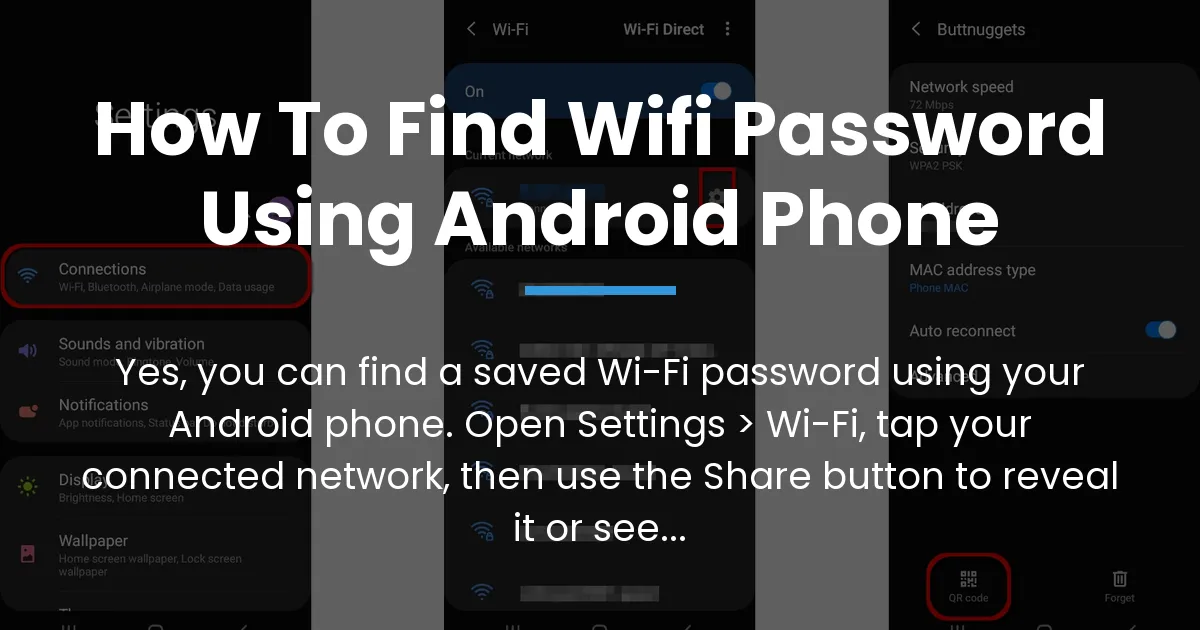
Yes, your Android phone can show you the passwords for Wi-Fi networks it remembers. This is a built-in feature designed to help you recover passwords you have forgotten, like for your home network. The process starts in one place on every phone but can look a little different depending on your brand and software version.
Before we start, there is one universal rule. Your phone must have successfully connected to that Wi-Fi network at least once before and saved the login details. If you are currently connected or were in the past, you are in the right place to find that wifi password using your android phone.
The Rule for Finding Any Wi-Fi Password
You can only view a Wi-Fi password if your Android device has it stored in its memory. This happens automatically when you connect to a network and tap “Save” or “Connect.” It is crucial to understand the difference between two states: being currently connected and having the network saved.
If you are currently online through the Wi-Fi, the password is definitely on your phone. If you are not connected right now, your phone might still have the password saved from a previous session. Not all networks are saved forever; some public ones might be set to not save the credential.
| Network Situation | Can You View the Password? |
|---|---|
| Your Home Network (You are connected now) | Yes |
| Your Home Network (You are not home, but connected before) | Yes, if saved |
| A Friend’s House (Connected once, saved the password) | Yes |
| A Coffee Shop (Connected once, did not choose “Save”) | No |
| A Network You See But Have Never Joined | No |
The Standard Way to Find Your Wi-Fi Password
This is the primary method for most phones running newer Android versions. The goal is to reach the network’s details page and use the “Share” feature, which will show the password.
For Most Modern Android Phones
If your phone is from Google, Motorola, Nokia, or similar brands with software close to standard Android, these are the quick steps. This works for phones on Android 10 and above.
- Open the Settings app on your phone.
- Tap on “Network & internet” and then select “Internet” or “Wi-Fi.”
- Find the network you want the password for in the list. If you are connected to it, tap directly on its name. If it is a saved network, you may need to tap “Saved networks” first.
- On the network’s details screen, tap the “Share” button. You might need to verify your identity with your fingerprint, PIN, or pattern.
- A QR code will appear on the screen. The Wi-Fi password will be shown in plain text below the QR code.
For Samsung Galaxy Phones
Samsung phones have a slightly different menu path, but the principle is the same. The option is often more straightforward to find.
- Open your Settings app.
- Go into “Connections” and then select “Wi-Fi.”
- Find your current network or a saved one. Tap the gear icon next to its name.
- On the next screen, you will see a “Share” option or a QR code icon. Tap it and authenticate if asked.
- The password will be visible on the sharing screen, usually beneath the QR code.
If the Share Button is Missing on Your Android Phone
Many users reach the Wi-Fi settings and find no “Share” button or QR code option. This is a common point of frustration that most guides do not explain. If your phone does not have this feature, it is not broken; the functionality was simply not included by the manufacturer or is blocked by a specific setting.
Why the Option Might Not Be There
There are a few key reasons for this gap. First, your phone’s maker might have removed this feature from their version of Android. This is common on older phones or models from certain brands.
Second, if the Wi-Fi network is marked as a “Metered” network in your phone’s settings, Android can hide the share option to prevent accidental data usage. You can check this in the network’s advanced settings.
Finally, if your phone is from a carrier, the carrier’s software might have locked this feature down. This does not mean the password is gone, just that the easy path to it is blocked.
What You Can Do Instead
Do not worry if the standard method fails. You have other practical ways to recover the password. These alternatives use tools you likely already have.
Use Google Lens on a QR Code
This is a clever workaround if you have physical access to the router or another device already connected. Many routers have a QR code on a sticker that holds the login details. If a friend is connected, they can generate a QR code from their phone’s Wi-Fi settings.
On your Android phone, open the Google app or your camera app in Google Lens mode. Point it at the QR code. Instead of just connecting, look for a text result. Lens will often decode the text string, which includes the network name and password, letting you see it directly.
Use a Trusted Non-Root App
For advanced users, there are reputable open-source apps that can read saved network credentials. These apps do not require “root” access, which is a complex process of unlocking your phone’s system. You can find tools like “Wi-Fi Password Viewer” on platforms like GitHub.
A crucial warning: only download such apps from official, trusted sources like GitHub’s main project pages. Do not install random apps from unknown websites, as they could be malicious. This method is for those comfortable with sideloading apps outside the Play Store.
Access Your Router’s Web Interface
As a last resort, you can find the password by logging into the router itself. You need to be connected to its Wi-Fi. Open your phone’s web browser and type the router’s IP address into the address bar. Common addresses are 192.168.1.1 or 192.168.0.1.
Log in with the router’s admin username and password, which is often on a sticker on the router itself. Once inside, navigate to the wireless or Wi-Fi security settings. The password will be displayed there, and you can change it if needed.
Sharing a Network Without Showing the Password
Now that you know how to find the password, here is a powerful way to use that knowledge. The QR code from the “Share” menu is not just for showing the password; it is for sharing access securely.
When a guest needs to join your Wi-Fi, go to your connected network’s details and tap “Share.” Authenticate with your fingerprint or PIN. Your phone will display a QR code. Your guest simply needs to open their camera app, point it at your screen, and tap the notification that pops up to join instantly.
They never see the actual text password, and you never have to say it out loud or type it into their device. This is the safest and most convenient way to grant Wi-Fi access to visitors.
Managing and Removing Saved Wi-Fi Passwords
Being able to find passwords also means you should know how to manage them. Your phone saves many networks over time, which can clutter your list and even cause connection issues.
To see all networks your phone remembers, go to Settings > Network & Internet > Wi-Fi. Look for an option called “Saved networks” or “Manage networks.” Tapping this shows a complete list of every Wi-Fi network your device has stored credentials for.
If you see a network you no longer use, like an old café or a friend’s old router, tap on it. Select “Forget” or “Remove network.” This deletes the password and all related data from your phone. It will not automatically connect to that network in the future, which can improve security and battery life.
Conclusion
Finding a saved Wi-Fi password on an Android phone is a straightforward process that starts in your Wi-Fi settings. The standard method involves using the Share button to reveal the password or a QR code. Remember, this only works for networks your phone has connected to before.
If your phone does not have the Share option, you can use Google Lens to scan an existing QR code, or carefully use a trusted third-party app. The key takeaway is that your Android device holds onto these passwords for you, and with the right steps, you can retrieve them to reconnect your own devices or help a guest get online.
Frequently Asked Questions
Can I find a Wi-Fi password on Android if I’m not connected to the network?
Yes, but only if your phone has saved the password from a previous connection. You need to go to your saved networks list in the Wi-Fi settings, not the list of currently available networks.
Is it legal to find and use a saved Wi-Fi password from someone else’s network?
Only if you have explicit permission from the network owner. This guide is for recovering your own forgotten passwords, such as for your home network. Accessing a network without authorization is illegal in many places.
Why does my friend’s Samsung phone show the password but my Google Pixel doesn’t?
Different brands implement the feature differently. Samsung often shows the password more directly in the connection details, while Pixels and others hide it behind the Share button and QR code. Both methods achieve the same result.
Can I use this method to find my PLDT or PTCL router’s default password?
Yes. If your Android phone is connected to that router’s Wi-Fi, you can use the steps above to reveal the password your phone used to connect, which is often the default one on the router’s sticker.
What should I do if my phone is rooted and these steps don’t work?
With a rooted phone, you have direct access to the system file where Wi-Fi passwords are stored. Specialized file explorer apps with root permissions can navigate to and open this file to show all saved passwords in plain text.
How can I stop my Android phone from automatically sharing my Wi-Fi password?
This automatic sharing usually happens between devices logged into the same Google account. You can manage this in your Google account settings under “Device connections” or “Nearby Share” settings, where you can turn off Wi-Fi password sharing.
Does this work for mobile hotspot passwords too?
Yes. The password for a mobile hotspot you create on your phone is stored in the same way. Go to Settings > Network & Internet > Hotspot & tethering > Wi-Fi hotspot to see and change your hotspot’s password.
I found a QR code for a network; how can I scan it with my Android to get the password?
Open your camera app and point it at the QR code. A notification should appear. Tap it to see the network details and an option to connect. To see the password itself, use Google Lens on the QR code to decode the text information.
What’s the difference between “Current Network” and “Saved Networks” in the settings?
The “Current Network” is the one you are actively using right now. “Saved Networks” is a list of all Wi-Fi passwords your phone has stored, for networks you are not necessarily connected to at this moment.
Will viewing the password disconnect me from the Wi-Fi?
No, it will not. Viewing or sharing the password is a read-only action. Your connection remains perfectly stable while you look at the password or generate the QR code for someone else.