Losing your AirPods is frustrating enough. Trying to find them when your primary phone is an Android device adds an extra layer of complication. You are, after all, using a competitor’s tool to locate their lost product. The good news is that finding your AirPods with an Android phone is possible. The more important news is that it comes with significant and defining limitations that many guides gloss over.
Success hinges almost entirely on one pre-configured setting. Without it, your options become extremely limited. This guide will walk you through the honest, actionable steps, starting with the most critical checkpoint that determines everything else you can do.
The One Thing You Must Check First
Before you open a single app or website, you need to know this. The only way to see your AirPods’ location on a map remotely is if the “Find My” feature was enabled on them before they went missing. This links them to your Apple ID and the Find My network.
If this was never set up, you cannot use Apple’s iCloud method to locate them. It is a non-negotiable prerequisite. Your journey will be limited to a physical, close-range search using Bluetooth. Understanding this from the start saves you time and sets realistic expectations for your search.
What Find My Network Actually Does
The Find My network is a crowd-sourced system of Apple devices. If your lost AirPods are powered on and outside their case, any passing iPhone, iPad, or Mac can anonymously detect their Bluetooth signal and report their encrypted location to iCloud. This is how they can appear on a map even when they are miles away from you.
This system is why having an Apple ID with Find My enabled is so crucial. It is also why the AirPods must have some battery life left. A dead battery or AirPods tucked inside their closed, charging case means they are invisible to this network and to you.
How to Find Lost AirPods on Android via iCloud
If you confirmed that Find My is active for your AirPods, this is your primary method. You will use the iCloud website through a web browser on your Android device.
This process gives you the best chance of seeing their location on a map, playing a sound if they are online, or marking them as lost.
- Open a Web Browser
On your Android phone or tablet, open any web browser like Chrome, Firefox, or Samsung Internet. Navigate to the official iCloud website: icloud.com.
- Sign In to Your Apple ID
Enter the email and password for the Apple ID that is linked to your lost AirPods. This must be the exact same account you use with your iPhone or iPad. If you have two-factor authentication enabled, you will need to approve the sign-in from a trusted Apple device or phone number.
- Open Find My
Once logged into iCloud, you will see a grid of app icons. Tap on the “Find My” icon. It looks like a green radar symbol. On some browsers, you may go directly to icloud.com/find.
- View All Devices
At the top of the screen, you will see a menu labeled “All Devices.” Tap on it to reveal a list of every Apple product linked to your Apple ID, including iPhones, iPads, Macs, and AirPods.
- Select Your AirPods
From the device list, tap the name of your lost AirPods. Their last known location will now appear on the map. If they are currently online and detectable, you will see a green dot. If they are offline, you will see a gray dot showing their last known location, which could be hours or days old.
What You Can Do on the iCloud Map
Once you select your AirPods, you have three main options. These only work if the AirPods have battery and are not in their case.
The first option is to play a sound. This makes the AirPods play a loud, chirping noise to help you locate them under a couch or in a bag. The second is to get directions, which will open the location in Google Maps on your Android device to guide you there.
The third option is to enable Lost Mode. This locks the AirPods to your Apple ID, so they cannot be paired with another device. You can also display a custom message with your phone number on the finder’s iPhone screen if they are discovered.
How to Find Lost AirPods on Android with Bluetooth Apps
This is your only method if Find My was never enabled, or if you believe the AirPods are somewhere nearby in your house, car, or office. You will use a third-party app that scans for Bluetooth signals.
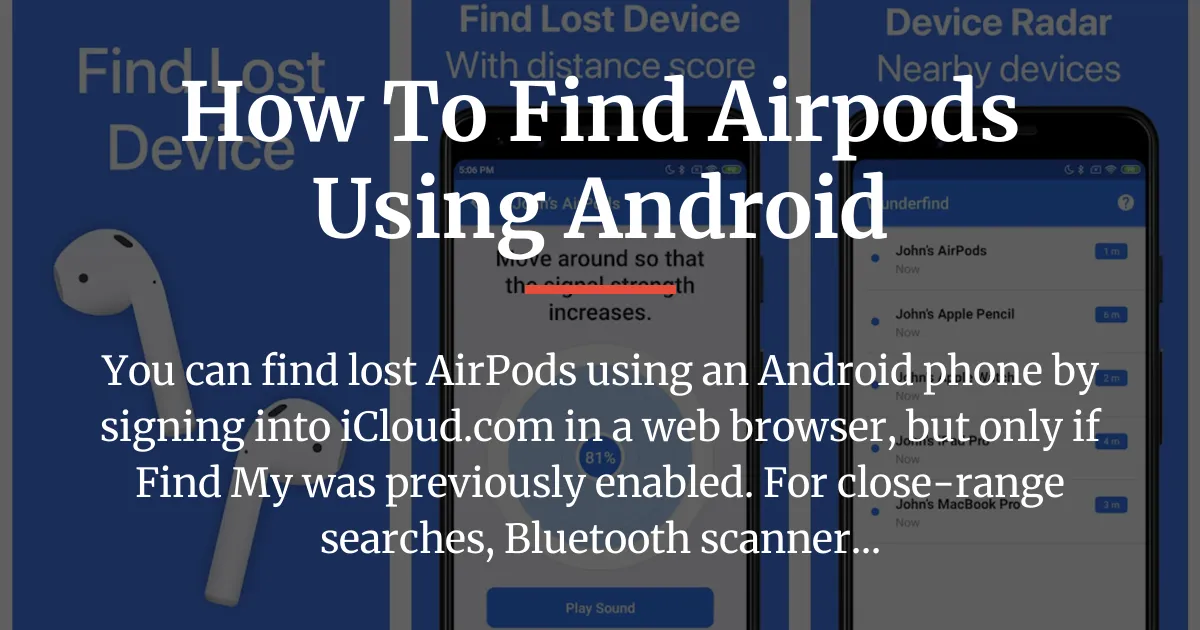
It is critical to understand what these apps do and do not do. They do not show a location on a map. They scan for Bluetooth devices and show a signal strength indicator, usually as a percentage or decibel level, which helps you gauge approximate distance.
Choosing and Using a Bluetooth Finder App
Apps like Wunderfind, Bluetooth Finder, or Find My Headphones & Earbuds are common choices. Download one from the Google Play Store. When you open the app, it will immediately start scanning.
Your lost AirPods will appear in the list of found devices, often with a name like “John’s AirPods” or simply “AirPods.” The app will show a changing signal strength number as you move around.
A higher percentage means you are likely getting closer. Walk slowly and watch the number increase or decrease. The moment the signal is strongest, you should be within a few feet of them. This method is perfect for a detailed, room-by-room search when you know they are in the building.
The Major Limitations of Bluetooth Tracking
Bluetooth apps have several severe constraints. Their effective range is typically only about 30 feet without obstructions. Walls, furniture, and other electronics can interfere with the signal.
Most importantly, if your AirPods are inside their closed charging case, they are in a deep sleep state and will not broadcast a Bluetooth signal at all. The app will not see them. For this method to work, at least one AirPod must be outside the case and have some battery charge remaining.
What to Do When You Can’t Locate Your AirPods
This is the reality check most articles skip. If iCloud shows no location and the Bluetooth app finds nothing, you need a practical next-step plan. The chances of recovery are now low, but not zero.
First, retrace your steps physically. Think about the last place you remember using them. Check all bags, jacket pockets, between car seats, and under furniture. Often, they are in a place you have already checked.
If they appear offline in iCloud but you are near their last known location, you can still enable “Notify When Found.” This means if they ever come online near any Apple device in the Find My network, you will instantly get an email alert with their current location.
Consider your AirPods case. If you have AirPods Pro (2nd generation) or later, the case itself has a speaker and can play a sound via Find My. For older models, the case does not emit a signal, so finding a lone case is nearly impossible.
Finally, if all hope is lost, you should mark them as lost in iCloud and consider them gone. You can then remove them from your Apple ID account. This clears them from your device list and allows you to pair a new set in the future.
Preventing This Problem in the Future
The best solution is proactive. If you use an iPhone sometimes, always ensure Find My is turned on for your AirPods. You can check this in your iPhone’s Bluetooth settings by tapping the “i” next to your AirPods’ name.
For users who live entirely in the Android ecosystem, a smart workaround is to use a non-Apple Bluetooth tracker. Attach a small Tile or Chipolo card to your AirPods case. You can then use the Tile or Chipolo app on your Android phone to find the case, which usually holds the earbuds.
Developing a simple habit can also save you. Always put your AirPods back in the same place, like a dedicated spot on your desk or in a specific pouch in your bag. Consistency is the most reliable finder’s tool of all.
Frequently Asked Questions
Can I use the Find My iPhone app on Android?
No, the Find My app is exclusive to Apple’s ecosystem. You cannot install it on an Android device. You must use the iCloud website in a browser instead.
Do my AirPods need to be connected to my Android to find them?
No, they do not. For iCloud finding, they just need to be online via the Find My network. For Bluetooth apps, they need to be powered on and in Bluetooth range, but they do not need to be paired to your Android phone.
Why can’t I see my AirPods on the iCloud map?
The most common reasons are that Find My was never enabled, the AirPods are out of battery, they are inside their closed case, or they have not been near any Apple device in the Find My network since they were lost.
What is the best app to find AirPods on Android?
Apps like Wunderfind are commonly recommended. They all function similarly by showing Bluetooth signal strength, so “best” is subjective. Their effectiveness is limited by range and requires the AirPods to be out of their case.
Can I find my AirPods case if the earbuds are missing?
Only if you have the AirPods Pro (2nd gen) or a later model case. For most AirPods models, the case does not emit a findable signal by itself. You need at least one earbud to be outside the case for tracking to work.
How accurate is the location on iCloud Find My?
It can be very precise, sometimes showing an exact building. Often, it shows a large green circle on the map, indicating the area where they were last detected. The size of the circle depends on the accuracy of the location data.
Will my AirPods appear on iCloud if I reset them?
No. Resetting your AirPods removes them from your Apple ID and the Find My network permanently. After a reset, you can no longer track them.
Can someone else track my lost AirPods?
No. They are securely linked only to your Apple ID. The only exception is if you use Family Sharing and have explicitly shared their location with a family member.
What does the Bluetooth signal strength percentage mean?
It is a rough indicator of proximity. A higher percentage generally means you are closer to the AirPods. Use it as a guide, moving slowly and watching the number change to zero in on their hiding spot.
How can I prevent this problem in the future?
Always enable Find My on a linked iPhone. As an Android user, consider attaching a compatible Bluetooth tracker like a Tile to the case. Also, make a habit of storing your AirPods in the same spot every time.