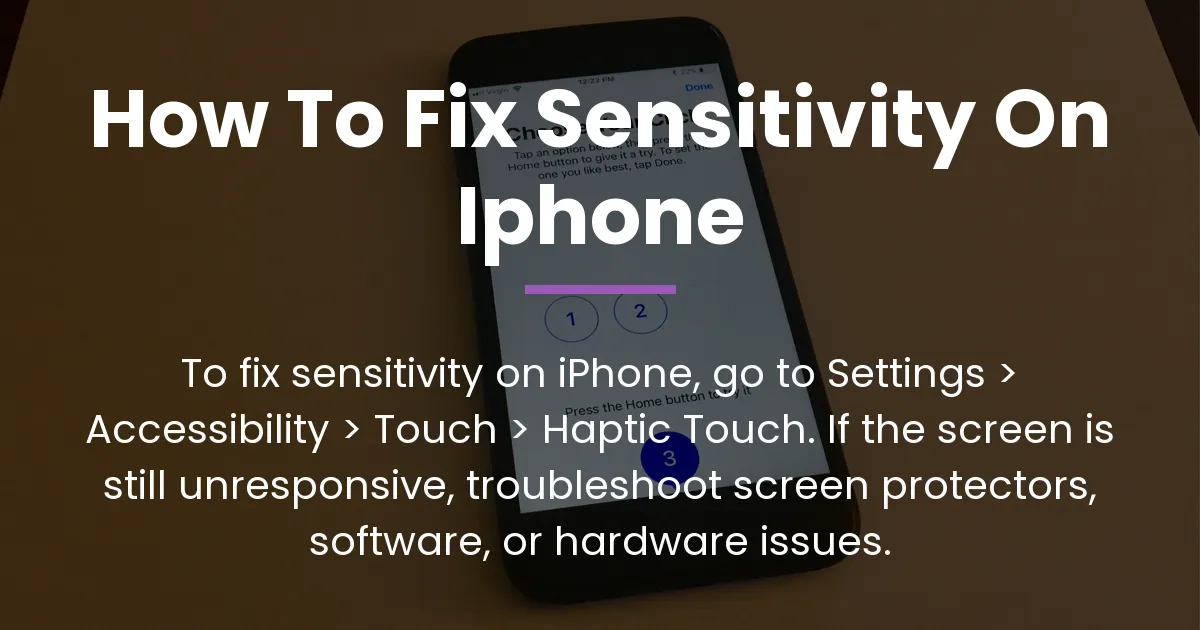
If your iPhone screen feels laggy, misses taps, or registers touches too easily, you’re likely searching for a way to fix sensitivity on iPhone. The direct answer is found in the Accessibility settings for Haptic Touch, which controls how long you press to activate menus. However, true screen sensitivity is often a deeper issue, and solving it means finding the real cause, whether it’s a simple screen protector or a software bug.
Adjust Haptic Touch Sensitivity on Your iPhone
The most common setting referred to as touch sensitivity controls the speed of touch-and-hold gestures. This feature is called Haptic Touch. It is not a general screen sensitivity slider but determines how quickly a long press activates a context menu, like when you press an app icon on your home screen.
To change this, open your Settings app and follow these steps.
- Tap on Accessibility.
- Select Touch.
- Tap on Haptic Touch.
You will see two options: Fast and Slow. The Fast setting requires a shorter press to activate the Haptic Touch menu, which can make your phone feel more responsive. The Slow setting needs a longer, more deliberate press.
Use the interactive test image at the bottom of that screen. Press and hold on the image to feel the vibration feedback. This lets you preview the new setting before you leave the menu. Choosing Fast is the best way to make these specific gestures feel quicker and more sensitive.
Why Changing Haptic Touch Might Not Fix Your Screen
If you adjusted the Haptic Touch duration but your screen still feels wrong, you have discovered the key difference. Haptic Touch only controls one specific action—the touch-and-hold gesture. It does not affect how your iPhone registers normal taps, swipes, or typing.
Your problem might be general screen responsiveness. This can feel like taps not registering unless you press hard, the screen reacting on its own, or a noticeable lag between your touch and the action on screen. When Haptic Touch settings don’t help, you need to start a broader troubleshooting process to find the root cause.
Troubleshooting iPhone Touch Screen Problems
When basic settings don’t work, you need to systematically check for common issues. Start with simple physical fixes before moving to software and finally considering hardware.
Check for Physical Interference
Often, the problem is something between your finger and the iPhone’s actual screen. A poorly installed or low-quality screen protector is a very common culprit. It can create a small gap or interfere with the screen’s capacitive field.
Try gently pressing down on the edges of your screen protector to ensure it is fully adhered. If the problem is mostly around the edges, a bulky case might be pressing on the protector or the screen itself. Remove your case and see if touch response improves.
Next, clean your screen properly. Oils, lotion, and dirt can disrupt the electrical conductivity your screen uses. Use a soft, slightly damp microfiber cloth to wipe the screen clean. Never use household cleaners or sprays directly on the glass, as they can damage the protective coating.
Perform Software Troubleshooting
A temporary software glitch can make your touch screen act strangely. The first and easiest fix is to force restart your iPhone. This clears the device’s temporary memory without deleting any data.
The steps vary by model. For most recent iPhones, quickly press and release the Volume Up button, then the Volume Down button, then press and hold the Side button until you see the Apple logo.
After restarting, ensure your iPhone is running the latest version of iOS. Software updates frequently include bug fixes for performance and touch issues. Go to Settings > General > Software Update to check.
If problems persist, a specific app might be causing system-wide lag. You can check this by restarting your iPhone in Safe Mode. However, since iOS doesn’t have a traditional Safe Mode, a good alternative is to notice if the problem happens everywhere or just in one app, like a game or social media app.
Diagnose Potential Hardware Issues
If physical and software steps fail, a hardware problem is possible. Modern iPhones have a built-in diagnostic suite, but it’s primarily for Apple technicians. You can use a simpler test by opening a basic app like Notes and slowly dragging your finger across the screen.
Draw loops and lines. If the line skips or jumps in a certain spot repeatedly, there may be a dead zone or a spot with damaged digitiser components. Look closely at your screen for any hairline cracks you might have missed, especially around the edges.
Check for signs of liquid damage, even if you don’t remember spilling anything. Look in the SIM card tray for a red liquid contact indicator. If it’s triggered, internal corrosion could be causing electrical issues. For persistent, unexplained touch problems, the final step is contacting Apple Support or visiting a professional repair service. They can run full diagnostics and determine if the display itself needs repair or calibration.
Controlling Related Touch Behaviors on Your iPhone
The idea of “sensitivity” extends beyond just the screen. iOS has other settings that change how your touch inputs are interpreted, and you can also adjust how connected accessories behave.
Using Touch Accommodations
This is a powerful set of tools in the Accessibility menu designed for users who need more control over how touches are registered. You can find it under Settings > Accessibility > Touch > Touch Accommodations.
Here, you can enable features like Hold Duration, which requires you to touch and hold for a set time before a tap is registered. This can prevent accidental taps. Ignore Repeat helps if a single touch registers twice. You can also adjust the Tap Assistance setting to define which part of the screen responds to your touch.
Adjusting Keyboard Feedback and Response
If you feel your keyboard is too sensitive and makes typos, you can adjust its behavior. Go to Settings > Sounds & Haptics > Keyboard Feedback. Here, you can turn off “Sound” and “Haptic” to remove feedback that might make typing feel overly reactive.
For a more substantial change, you can enable Key Repeat in the Accessibility settings. Go to Settings > Accessibility > Keyboards and toggle on “Key Repeat.” This changes how holding down a key works, which can feel different while typing.
Managing Settings for Connected Accessories
Sensitivity can also refer to connected Bluetooth accessories. If you pair a Bluetooth mouse with your iPhone, you adjust its tracking speed in Settings > Accessibility > Touch > AssistiveTouch > Devices. Select your mouse and adjust the tracking speed slider.
Similarly, for Bluetooth keyboards, you can manage key repeat rates and other behaviors in the general Keyboard settings. This shows how fixing sensitivity isn’t just about the screen but about tailoring all input methods to your preference.
Frequently Asked Questions
Is there a general touch sensitivity slider in iPhone Settings?
No, there is no single slider for general touch sensitivity on iPhone. The main control is for Haptic Touch duration, which only affects touch-and-hold gestures. Other touch responses are managed through Accessibility features like Touch Accommodations.
My iPhone screen doesn’t register taps unless I press hard. What should I do?
First, clean your screen and check your screen protector. Then, perform a force restart. If the issue continues, it may be a sign of a failing digitiser or physical damage, and you should seek professional diagnostics.
How do I change how sensitive my iPhone keyboard is?
You can turn off keyboard sound and haptic feedback in Settings > Sounds & Haptics. For more control over key presses, explore the Key Repeat and Sticky Keys options in Settings > Accessibility > Keyboards.
Can a screen protector cause touch sensitivity problems?
Yes, a poorly installed, thick, or low-quality screen protector is a very common cause of touch issues. It can create dead zones or make the screen feel less responsive, especially if there are air bubbles or if it doesn’t cover the entire active screen area.
What was 3D Touch and how is it different from Haptic Touch?
3D Touch was a hardware feature on older iPhones that could sense how hard you pressed the screen, enabling “peek and pop” actions. Haptic Touch, which replaced it, uses a long press with haptic vibration feedback and is controlled by time, not pressure.
Why did my iPhone’s touch sensitivity suddenly change?
A sudden change is often software-related. It could be after an iOS update, a bug in a newly installed app, or a temporary system glitch. A force restart is the best first step to resolve a sudden change with no apparent cause.
How can I make my iPhone screen less sensitive for a child?
Use Guided Access mode. You can lock the iPhone into a single app and even disable areas of the screen. Also, enabling Touch Accommodations with a longer Hold Duration can prevent accidental taps from registering too quickly.
Do cleaning solutions affect iPhone touch sensitivity?
Yes, harsh chemicals like window cleaners or alcohol can strip the oleophobic coating on your screen. This coating helps your finger glide smoothly and can affect the capacitive sensing if damaged. Only use water on a soft cloth.
How do I adjust the sensitivity of my Bluetooth mouse connected to my iPhone?
Go to Settings > Accessibility > Touch > AssistiveTouch, ensure it is on, tap Devices, select your connected mouse, and use the Tracking Speed slider to adjust its cursor movement sensitivity.
My iPhone passes all diagnostics but still feels laggy. What next?
Check for background processes. Heavy app updates, Photos indexing, or a nearly full storage can cause system-wide lag. Go to Settings > General > iPhone Storage to see if your storage is almost full, as this significantly impacts performance.
Conclusion
Knowing how to fix sensitivity on iPhone means understanding what you’re actually fixing. Start with the Haptic Touch setting for gesture speed, but be ready to troubleshoot physical obstructions like screen protectors, software bugs with a restart, or deeper hardware issues. By using the full range of controls in Accessibility and following a logical diagnostic path, you can solve the real problem and get your iPhone’s touch response feeling just right again.