That sinking feeling when you can’t find your phone is awful. Your mind races through the last places you saw it, hoping it’s just buried in a couch cushion. In this moment of panic, your Google account is your most powerful tool. This guide will give you the immediate steps to take, explain exactly what you need for it to work, and provide backup plans for when things aren’t perfect. We will move from quick action to deeper understanding, so you can recover your phone or at least protect your information.
The Immediate Steps to Find Your Phone
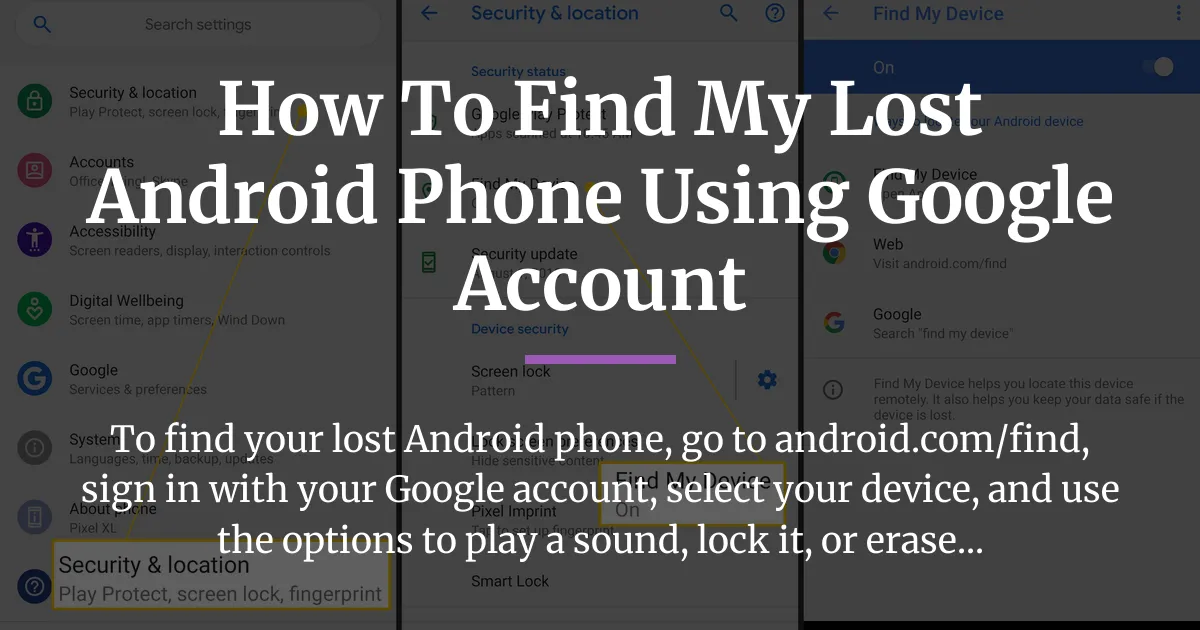
If your Android phone is lost right now, you need to act fast. The primary method is Google’s Find My Device service, which is built for this exact situation. You can use it from any computer, tablet, or another phone.
Here is the direct, step-by-step process to locate your lost Android phone using your Google account.
- Open a web browser on any device and go to the official Find My Device website at android.com/find.
- Sign in using the exact Google account and password that is linked to your lost Android phone. This is the most critical step.
- Once signed in, the site will automatically search for your devices. If you have more than one, select your lost phone from the menu at the top of the screen.
- Look at the map and the information panel. It will show the last known location of your phone, its battery level, and what network it is connected to, if any.
- You will see three main action buttons on the left. Use Play Sound if you think the phone is nearby, even on silent. Use Secure Device to remotely lock it with a custom message and phone number. Use Erase Device as a final step if you believe it is stolen and you need to protect your data.
The moment you realize your phone is missing, you should start with these steps. Speed increases your chances of seeing an accurate, live location before the battery dies or someone turns it off.
What You Need For This to Work
The steps above are straightforward, but they rely completely on several things being set up on your phone before it went missing. This is the part most guides mention too late. If Find My Device isn’t working for you, it’s almost certainly because one of these conditions wasn’t met.
Your phone must have had certain settings enabled while it was still in your possession.
The Essential Settings Checklist
First, the Find My Device service itself needs to be turned on. You can usually find this in your phone’s Settings under Google or Google Services. It must be switched to the “on” position.
Second, the phone’s location services, or GPS, must have been active. This is different from just having a data connection. Your phone needs permission to report where it is.
Third, a related setting called Web & App Activity in your Google Account should be active. This helps provide more location history data which can be useful if the primary signal is lost.
Device State Requirements
Beyond settings, the physical state of your phone matters. It must be powered on and have some battery life remaining. A completely dead phone cannot send its location.
It also needs a way to connect to the internet. This means it must be within range of a mobile data network or a Wi-Fi hotspot that it knows and can join automatically.
Finally, the phone must be signed into the Google Account you are using on the website. If you have multiple accounts on the phone, you need to sign in with the main one.
Why Find My Device Might Not Show Your Location
Understanding why the service fails can save you from frustration. If you see a message saying “Location unavailable,” it typically means the device has been off, out of battery, or without any data or Wi-Fi connection for a significant time, often over 24 hours.
The message “Can’t reach device” or “Device offline” means it recently lost connection. In this case, the map will usually show you the last known location before it went offline, which is still a valuable clue.
If the website cannot find your device at all, the most common reason is that the critical settings from the checklist above were never enabled. Unfortunately, you cannot turn these on remotely after the phone is lost.
What to Do If Your Phone Can’t Be Found
When the map is blank or shows an old location, don’t give up. You still have important options to secure your information and gather clues through other methods.
Your first protective action should be to contact your mobile service provider. Call them and report the phone as lost or stolen. They can suspend your service immediately, which stops anyone from making calls or using your data. More importantly, they can block the phone’s unique IMEI number, which makes the device unusable on major networks, reducing its value to a thief.
Next, think about using a secondary tool like Google Maps Timeline. This is a separate feature that tracks your location history if you have it enabled. Go to timeline.google.com on a computer and sign in with the same Google account.
You might see a detailed log of where your phone traveled before it went offline. This can give you a final address or neighborhood to check, which is more helpful than a completely blank map.
Finally, you have a critical decision to make using the Find My Device website itself. Even if the location is offline, you can often still send a remote command.
You should choose between the “Secure Device” and “Erase Device” options. If you have hope of recovering the phone, use Secure Device to lock it with a message offering a reward for its return. This protects your data without deleting it.
If you are sure the phone is gone for good and it contains very sensitive information like banking details, the “Erase Device” command is your nuclear option. Once you erase, Find My Device will no longer work on that phone, but your personal data will be safe.
When Your Phone is Offline or Can’t Be Found
For future prevention, it’s worth knowing about Bluetooth tracker tags. These are small physical tags you can attach to your keys, wallet, or even to your phone case.
Newer tags from companies like Chipolo work directly with Google’s Find My Device network. If you lose an item with one of these tags, it can anonymously ping nearby Android devices in the crowdsourced network, updating its location on the map even when it’s offline and far from you.
This creates a powerful secondary finding layer. Remember, this is a solution you set up before you lose something. It won’t help find a phone that is already lost and doesn’t have a tag attached.
Getting Ready Before You Lose Your Phone
The best time to deal with a lost phone is before it happens. Taking a few minutes now can save you hours of stress and potential loss later. Start by running a quick security check on your current phone.
Open your Settings, go to Google, then Find My Device, and make sure it is enabled. Then check that your location is turned on. Finally, look in your Google Account settings for Web & App Activity and ensure it’s on too.
Also, make sure you have a secure screen lock set up. A PIN, pattern, or password is much safer than just a swipe to unlock. This is your first line of defense if someone finds your phone.
You can also add a recovery message to your lock screen. In your device’s security settings, you can set a custom message like “If found, please call this number.” This message will appear on the locked screen, giving a good samaritan a way to contact you without needing to unlock the phone.
Think about your accessories as part of your security plan. As mentioned, a Bluetooth tracker tag paired with the Find My Device network is a smart, modern upgrade to help you keep track of not just your phone, but also your wallet, keys, or bag.
Frequently Asked Questions
Can I use Find My Device if someone has turned off my phone?
No, you cannot. Once the phone is powered off, it cannot communicate its location or receive remote commands like Lock or Erase. However, if it was recently turned off, you might see its last known location on the map.
What is the difference between “Lock” and “Erase” and when should I use each?
Use “Lock” (Secure Device) if you want to protect your data but still hope to get the phone back. It lets you add a message with a contact number. Use “Erase Device” only as a last resort if you believe the phone is stolen and contains irreplaceable sensitive data, as it permanently deletes everything and you can no longer track it.
Can I use this to find a lost Android phone without a Google account?
No, the Find My Device service is tied directly to your Google account. The phone must be signed into an account, and you must use that same account to locate it. There is no way to bypass this requirement.
Will locking or erasing my phone cancel my mobile service or phone number?
No, these remote actions only affect the data and access on the phone itself. To stop your service and protect your phone number, you must contact your mobile service provider directly to report the phone lost and suspend your SIM card.
Is using Google Maps Timeline to find a lost phone reliable?
It can be a helpful clue, but it has limitations. It shows where your phone *was*, not where it is right now. Its accuracy depends on your location history settings being on and the phone having had a data connection before it was lost.
What should I do if I see my lost phone moving on the map?
Do not try to recover it yourself if it appears to be in motion or in an unsafe area. Your safety is most important. Use the “Secure Device” feature to lock it immediately with a message. Note the location and provide that information to the authorities if you decide to file a police report.
Can someone else use my Google Account to track my phone without me knowing?
Only if they know your Google account password and can pass any two-step verification you have set up. To prevent this, always use a strong, unique password for your Google account and enable 2-Step Verification in your security settings.
Do I need to install the Find My Device app on my phone beforehand?
Most modern Android phones have the necessary service built-in and enabled by default. You can check in your settings, but you usually do not need to install a separate app from the store for it to work.
What information do I need to provide to my mobile service provider if my phone is stolen?
You will need your account password or security PIN to verify your identity. The most critical piece of information is your phone’s IMEI number, which you can often find on your original box or on a past bill. They use this to block the device.
Can Bluetooth tracker tags help me find my lost Android phone?
Yes, but only if you attach one to your phone or its case *before* it gets lost. Tags that work with the Find My Device network, like the Chipolo One Point, can then help locate it by using nearby Android devices to update its location, even if the phone is offline.
Losing your phone is stressful, but your Google account provides a powerful set of tools to help you get it back or protect your privacy. Remember to act quickly with the Find My Device website, understand the settings that must be on, and use backup plans like your location history. Finally, take this experience as a reminder to check your phone’s security settings today. A few minutes of preparation can make all the difference, turning a potential disaster into a simple, recoverable mistake.