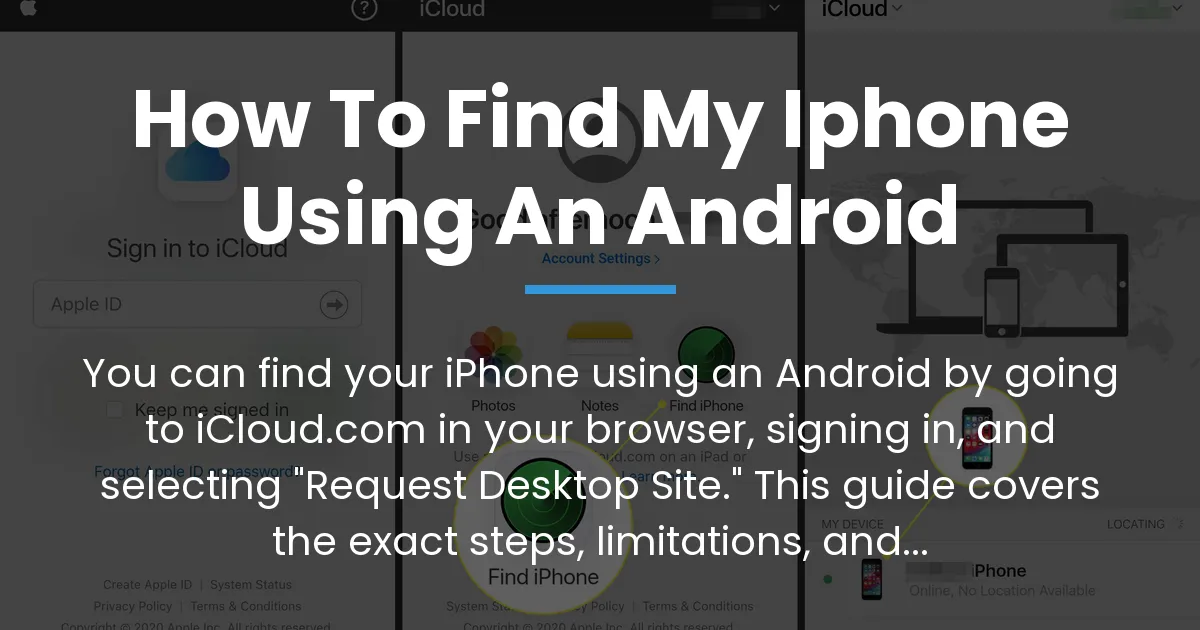
Yes, you can find your lost iPhone using an Android device, and the direct method is to use Apple’s iCloud website in your Android’s browser. This situation is common in households with mixed technology, where your only available tool is an Android phone or tablet. While the process has some important limitations, this guide will walk you through the immediate steps, explain what to realistically expect, and show you how to set up a much better system for the future so you’re never caught off guard again.
Before You Start The Essential iPhone Settings
Your ability to find your iPhone from any device, including an Android, depends entirely on settings that must be activated before your phone goes missing. This is the most critical step most guides overlook.
If these features were not enabled, the standard finding methods will not work, and you will need to skip to the alternative steps later in this guide.
Why Find My iPhone Must Be Enabled
The Find My iPhone service is Apple’s built-in tool for locating devices. It must be turned on and linked to your iCloud account while the iPhone is still in your possession. This service allows the phone to report its location securely to Apple’s servers, which you can then access from the web.
Think of it as leaving a digital trail active. If this trail was never started, there is nothing to follow once the phone is lost.
How to Verify Your iCloud Credentials
To use the iCloud website on your Android, you need your Apple ID and password. This is typically the email address and password you use for the App Store or iTunes.
If you cannot remember these details, recovering them can take time, which is stressful during a loss. It is wise to know and test your login information before an emergency happens.
The Role of Location Services
For Find My iPhone to provide an accurate location, your iPhone’s Location Services must also be active. This is usually left on by default. The feature needs both a cellular data or Wi-Fi connection and some battery power to transmit its location.
A phone that is powered off or has a dead battery cannot send its location until it is turned back on and connects to a network.
The Immediate Method iCloud Find My iPhone on Android
This is the primary procedure you searched for. It uses the web version of Apple’s Find My service, accessed through your Android device’s internet browser like Chrome or Samsung Internet.
The website is designed for computers, so you must take one extra step to make it work on your Android phone’s smaller screen.
- Open Your Android Web Browser
Launch the browser app you normally use on your Android device. Any modern browser will work, including Google Chrome, Firefox, or Samsung Internet.
- Navigate to iCloud.com and Sign In
Type www.icloud.com into the address bar and press go. When the login page loads, carefully enter your Apple ID email address and password. This is the same account you use on your lost iPhone.
- Activate the Desktop Site View
This is the key trick. The mobile site may not show the Find My iPhone feature. Tap the three-dot menu icon in the top right hand corner of your browser. From the drop down list, find and tap the option that says “Desktop site” or “Request Desktop Site”. The page will reload in a computer-style format.
- Access the Find Devices Interface
Once signed into iCloud on the desktop site, look for and tap the “Find Devices” icon. It may be labeled “Find My” or appear in a grid of app icons. This will open Apple’s device-finding map.
- Locate and Act on Your iPhone
You should see a list or map showing all your Apple devices linked to your account. Select your lost iPhone from the list. The map will show its last known location. From here, you have a few options like playing a sound at full volume (even if it’s on silent), enabling Lost Mode to lock it and display a message, or, as a last resort, erasing it remotely.
The Critical Reality Check of This Method
While the steps above provide a lifeline, using iCloud.com on an Android browser is not a perfect or seamless experience. Understanding its flaws will help you manage your expectations during a stressful time.
Mobile Browser Limitations and Lag
The iCloud website is not optimized for mobile browsers, especially on Android. It can be slow, clunky, and difficult to navigate with touch controls meant for a larger computer screen. The interface may lag, and actions like refreshing the location can take multiple tries.
This is not a fast, app-like experience. It is a workaround that gets the job done but with noticeable friction.
Location Accuracy and Update Speed
The location shown is not live GPS. It is the last location your iPhone reported to Apple’s servers. In an area with good cell service, this can be very recent. In a basement or rural area, the location could be hours old or less precise, showing a general area rather than a specific building.
You may need to tap to refresh the location multiple times, and each update depends on your lost iPhone having an active data connection.
What Happens Without Data or Power
If your lost iPhone has run out of battery, is turned off, or is in a place with no cellular or Wi-Fi signal, its location will not update. The map will show the last location it reported before going offline.
This is a significant limitation. The Find My network can sometimes locate powered-off Apple devices for a short time, but this advanced feature works best with other Apple devices nearby, not from an Android browser.
Proactive Strategies for Cross-Platform Homes
The very need to search for “how to find my iPhone using an Android” reveals a common problem in mixed-device families. The best solution is not a reactive web workaround but a proactive app-based strategy set up before anything is lost.
The Case for Third Party Finding Apps
Dedicated cross-platform location apps solve the core problem by creating a shared ecosystem outside of Apple or Google. Once installed on both iPhone and Android, they allow you to see device locations quickly and reliably in a native app, avoiding the slow browser method entirely.
These apps are designed for this exact purpose and offer a much smoother, faster experience than iCloud.com.
Evaluating Cross Platform Location Apps
When choosing a location app, look for ones that are reputable, have strong privacy policies, and offer the features you need. A good app will provide real-time location sharing, history, and alerts without being overly complex.
It should be installed on the devices of family members with mutual consent, creating a private network for finding each other’s devices, whether iPhone or Android.
Setting Up Family Location Sharing in Advance
The optimal time to set this up is today, not when a phone is missing. Have each person in your household install the agreed-upon app on their phone. Grant the necessary permissions for location sharing.
This creates a permanent, easy-to-access solution. In the future, finding a family member’s lost iPhone from your Android is as simple as opening one app, with no browser tricks or password struggles required.
Your Action Plan for a Lost iPhone
Based on your specific situation, follow this prioritized plan to secure your device and information.
If Your iPhone is Set Up Correctly Priority Actions
First, immediately use the iCloud.com method on your Android as described. Play a sound if you think it’s nearby. If not, enable Lost Mode right away to lock the screen with a message containing a phone number where you can be reached. This protects your data.
Only consider the erase option if you believe the phone is stolen and you have no hope of recovery, as erasing will disable Find My iPhone permanently for that device.
If You Did Not Have Find My Enabled Alternative Steps
Your options are more limited. You cannot use Apple’s official tools. You should immediately change the password for the email account used as your Apple ID to prevent access to your accounts.
Contact your mobile carrier to report the phone lost and suspend service. You can also check with local authorities if you believe it was stolen. Review any other location-sharing apps you might have used, like Google Maps or a third-party app, which might show its last location.
Securing Your Device and Information
Regardless of the outcome, treat this as a wake-up call. Once you recover your phone or get a new one, enable Find My iPhone immediately in the settings. For true peace of mind in a mixed-device home, take the time to research and install a reliable cross-platform location app with your family.
This transforms a chaotic, reactive search into a simple, controlled process you already have mastered.
Frequently Asked Questions
Can I use Find My iPhone on Android if my lost iPhone is turned off?
You can see the last location it reported before it was turned off, but you cannot track its movement or make it play a sound until it is powered back on and connects to the internet.
What information do I need to have ready to use iCloud Find My iPhone?
You need your Apple ID email address and password. Without these login credentials, you cannot access the iCloud website to find your devices.
Will the person with my iPhone know I am trying to locate it?
If the phone is on and has a connection, playing a sound will be obvious. Using Lost Mode will display your message on the lock screen. Silently checking its location on the map does not send a notification.
Can I make my lost iPhone play a sound from an Android device?
Yes, after you log into iCloud.com on your Android and select your iPhone, one of the actions available is “Play Sound.” This will make it ring at full volume for two minutes, even if the mute switch is on.
Is there an official Find My app for Android from Apple?
No, Apple does not offer an official Find My app for Android devices. The only official method is through the iCloud.com website using a browser.
What should I do if I never set up Find My iPhone on my lost phone?
Your primary steps are to protect your information. Change your Apple ID and other important passwords immediately, contact your carrier to block the device, and check any other apps like Google Maps that might have recorded a recent location.
Can I use Google’s Find My Device to locate an iPhone?
No, Google’s Find My Device service only works for Android devices and cannot track Apple devices like the iPhone.
How accurate is the location shown on iCloud.com from an Android phone?
The accuracy varies. It can be very precise in urban areas with good GPS and data signals, but it may only show a general neighborhood or last known location if the iPhone is indoors, in a poor signal area, or its battery is low.
Does using iCloud.com on my Android drain my iPhone’s battery faster?
No, simply checking the location on iCloud.com does not affect your lost iPhone’s battery. However, if you use the “Play Sound” feature repeatedly, that will use some battery power.
How can I help a family member find their iPhone using my Android?
They must share their Apple ID login details with you so you can sign into iCloud.com on your Android. Alternatively, if you have set up a cross-platform family location app in advance, you can find their device through that app without needing their password.
Finding your iPhone using an Android is possible through the iCloud website, but this guide has shown it is a temporary fix with real limitations. The true solution for anyone living with a mix of Apple and Android devices is to set up a dedicated, cross-platform location-sharing app before anything gets lost. This prepares you for the future, turning a moment of panic into a simple, quick check on your own terms.