If you are reading this, your phone is probably missing. Take a breath. The fastest way to find a lost Android phone is by using the Google Account you set it up with. This guide walks you through every step, from the immediate action to take right now to the smart preparations that ensure you are never caught off guard again.
We will cover the essential Find My Device tool, explain what to do when your phone is offline or dead, and show you how to secure your data. You will also learn how to use other Google services for extra clues and set up your phone so it can always be found in the future.
Use Find My Device to Locate Your Phone Now
Your primary tool is Google’s Find My Device service. Think of it as a remote control for your lost phone. For this to work, the phone must be powered on, connected to the internet either through mobile data or Wi-Fi, and have its location services active. If these conditions are met, follow these steps.
First, on any computer, tablet, or another phone, open a web browser and go to the official website: google.com/android/find. You can also use the Find My Device app on another Android device.
Second, sign in using the exact Google Account that is the main account on your lost Android phone. This is the most critical step. Using a different account will not show your device.
Once signed in, the service will attempt to locate your devices. It will display a list of Android phones and tablets linked to that account. Select your lost phone from this list.
The map will then show your phone’s location, and you will see a menu with three main actions on the left side of the screen. Understanding these options is key to your next move.
The Three Action Choices
The “Play Sound” option will make your phone ring loudly for five minutes, even if it was set to silent or vibrate. This is perfect if you believe the phone is nearby, under a couch cushion, or in another room.
The “Secure Device” option is also called remote lock. This lets you lock your phone’s screen immediately with a new password or PIN. You can also display a custom message with a phone number on the lock screen, so a good Samaritan can contact you.
The “Erase Device” option is the last resort. This will permanently delete all apps, settings, and personal data from your phone’s internal storage to protect your privacy. After you erase the device, Find My Device will no longer work to locate it.
What the Find My Device Map Tells You
The map is your main source of information, but it requires careful interpretation. The location you see is not always a live, pinpoint track of your phone.
Live Location vs Last Known Location
If your phone is online and communicating with Google’s servers, you will see a relatively current location, often with a small accuracy radius circle around it. This is a live location.
However, if your phone is offline because it is in airplane mode, has no signal, or the battery is dead, the map will show the “last known location.” This is the last place your phone was before it lost its connection. This location could be hours old, but it is a vital starting point for your search.
Understanding the Crowdsourced Network
For devices running relatively recent versions of Android, there is a powerful backup system. If your phone is offline, Find My Device can use a crowdsourced network to help locate it.
Here is how it works. When your lost phone’s Bluetooth is on, other Android devices that are nearby and part of the network can detect its anonymous signal. These helper devices then send an encrypted location tag to Google’s servers.
When you check Find My Device, you might see a location updated by this “Find nearby” network, even though your phone itself has no internet. This is why keeping Bluetooth on is more helpful than many people think.
Steps to Take If Your Phone is Offline
Seeing an offline status can be frustrating, but you are not out of options. A logical plan of action can still lead to recovery or protect your data.
First, look at the last known location on the map. Zoom in and use satellite or street view to identify the specific building, park, or street. Think about your movements. Does that location make sense? It could be a café you visited or your office.
Second, immediately activate the “Notify when found” option in Find My Device. This tells the service to send an alert to your email the moment your phone comes back online. If someone powers it on and it connects to the internet, you will know instantly.
Using Google Maps Timeline for Clues
Your Google Account holds more location history than you might realize. If you have Location History turned on in your Google Account settings, you can use Google Maps Timeline.
Visit timeline.google.com on a computer while signed into the same account. This shows a detailed history of where your phone has been, often down to the specific routes and stops. You can check the hours before it went offline to see its exact path, which might give you a better search area than a single last-known point.
The Decision to Erase Remotely
If the phone contains sensitive information and you believe it has been stolen, you may need to use the remote erase function even while it is offline. Here is what happens. The erase command is queued on Google’s servers.
The next time your lost Android device connects to the internet, even briefly, it will receive the command and immediately begin the factory reset process. This is a one-way trip. Once erased, you cannot track it anymore, but your personal data will be safe.
Secure Your Information on a Lost Device
Finding the physical phone is one goal, but protecting your digital life is equally important. The Secure Device (remote lock) feature is designed for this.
When you trigger remote lock, you will be prompted to create a new, strong password for the device. This overrides any existing swipe or fingerprint unlock. It also lets you display a message on the lock screen.
Write a clear message like, “This phone is lost. Please call [a friend’s number] for a reward.” This gives a finder a way to contact you without needing to unlock the phone.
Revoking Account Access
This is a critical step most guides miss. After you have locked or erased your device, you should manually remove its access from your Google Account. This ensures that even if the old password is bypassed, the phone cannot easily sync your Google data.
Go to your Google Account security settings, look at “Your devices,” and remove the lost device from the list of trusted devices. This is a final layer of security for your account.
Prepare Your Phone Before It Gets Lost
The right preparation makes all the difference. These settings are not just suggestions; they are requirements for Find My Device to function properly.
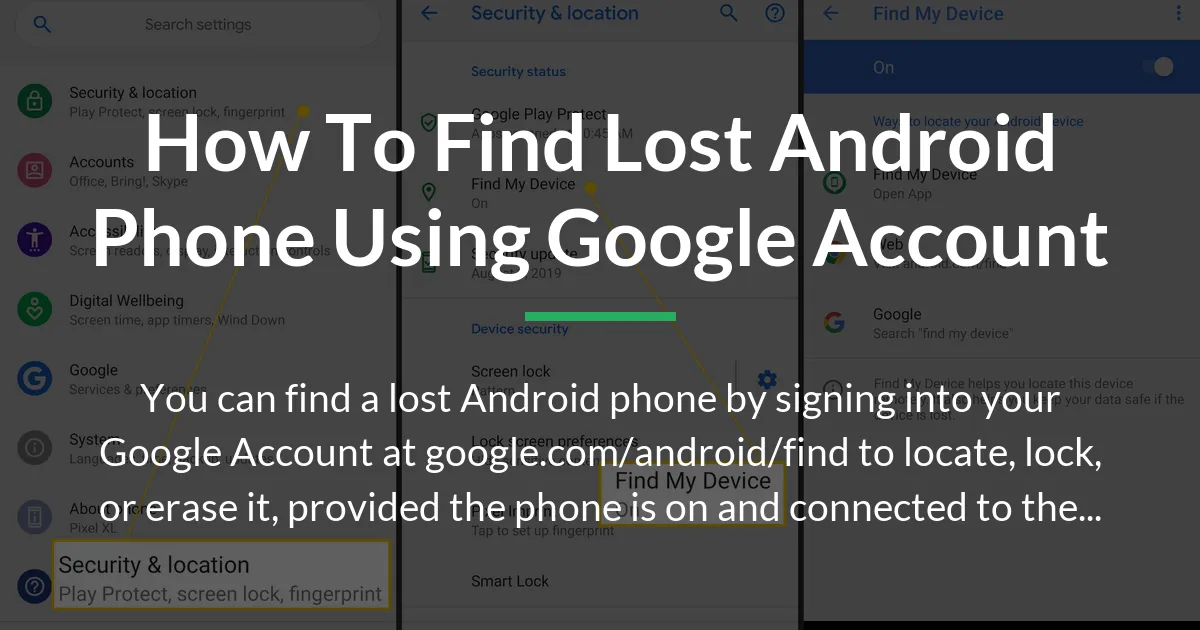
Open your phone’s Settings app. Go to “Security” or “Google,” then find “Find My Device.” Ensure the main toggle is on. More importantly, tap “Find My Device settings” to see if it is enabled as a device administrator. This special permission allows it to perform remote lock and erase.
Next, check that location services are turned on. The phone cannot report its location if this is off. Also, ensure your Google Account is set to sync. You can test all this right now by visiting the Find My Device website on a computer while your phone is with you. It should appear on the map.
Essential Security Settings
Always use a secure screen lock, like a PIN, pattern, or password. A fingerprint or face unlock is convenient, but a strong backup PIN is what protects you if the phone is restarted. Also, enable 2-Step Verification on your Google Account. This makes it exponentially harder for anyone who finds your phone to access your account.
Other Ways to Find a Lost Android Phone
While your Google Account is the central hub, other methods can provide supporting information or serve as alternatives.
As mentioned, Google Maps Timeline is a powerful tool for reviewing recent locations. Your mobile service provider can also help, but not in the way you might think. They cannot track the phone’s live GPS location due to privacy laws.
However, you can contact them to report the phone as lost or stolen. They can block the device from using their network using its IMEI number, which is found on the original box or in your account settings online. This renders the phone unusable on any major carrier.
Using Linked Devices and Trackers
If you have a Wear OS watch paired to your lost phone, you can sometimes use the watch’s connectivity to get clues. Some third-party Bluetooth tracker tags, when attached to your keys or bag, also work with smartphone networks to help you find lost items, including your phone if it is nearby.
Losing your phone is stressful, but your Google Account provides a powerful and free set of tools to find, secure, and recover your lost Android phone. Start with the immediate action on Find My Device, use the location insights intelligently, and always have a plan for offline scenarios. By taking a few minutes now to configure your settings, you can save yourself hours of worry later. You have more control over your device’s safety than you might think.
Frequently Asked Questions
Can I find my lost Android phone without a Google Account?
It is very difficult. The Find My Device service requires your Google Account to identify and communicate with your phone. Without it, your main options are using a third-party app you installed previously, contacting your mobile service provider to block the IMEI, or using a linked Bluetooth tracker.
How do I recover my photos if I have to erase my lost phone?
If you had Google Photos backup enabled before you lost the phone, your photos and videos are already safe in the cloud. After you get a new device, simply install the Google Photos app and sign in with the same account. Your entire library will sync to your new phone.
What should I do if I see my lost phone is moving on the map?
Do not try to recover a moving phone yourself, as this can be dangerous. Use the remote lock feature immediately to secure it with a message. If you are sure it is stolen, note the location direction and contact the local police. Provide them with the IMEI number and the live location information from Find My Device.
Can someone turn off Find My Device after stealing my phone?
If you have a secure screen lock, it is very hard. To turn off Find My Device in settings, a thief would need your phone’s unlock password. If they try to factory reset the phone from the recovery menu, Factory Reset Protection (FRP) will trigger. After the reset, they will be unable to set up the phone without entering your original Google Account password.
Does this work if my phone battery is dead?
No, a phone with a completely dead battery cannot communicate. Find My Device will only show you the last known location from before the battery died. This is why acting quickly and noting that last location is so important when you cannot find your phone.
What is the difference between Lock and Erase in Find My Device?
Lock secures your phone by putting a new password and your contact message on the screen, but it keeps your data intact so you can still find the phone. Erase permanently deletes all personal data to protect your privacy, but it also removes Find My Device, so you can no longer track the phone’s location after that.
How can I see the last locations my phone was at before it went offline?
Use Google Maps Timeline at timeline.google.com. This requires you to have had Location History enabled in your Google Account settings. It shows a detailed, street-level history of where your device traveled, which can be more helpful than a single last-known point.
Is there a way to make my lost phone ring even if it is on silent?
Yes. The “Play Sound” feature in Find My Device overrides the volume settings and will ring your phone at maximum volume for five minutes. This works as long as the phone is on and connected to the internet.
What information do I need to provide to the police if my phone is stolen?
Provide the police with your phone’s make and model, its serial number, and most importantly, its 15-digit IMEI number. You can find the IMEI on the original box or by signing into your Google Find My Device page or your mobile carrier’s account website.
How do I remove a lost or erased phone from my Google Account?
Go to your Google Account security settings online, find the section labeled “Your devices” or “Manage devices,” and select the lost phone. Look for an option to “Sign out” or “Remove device.” This revokes its access to your account data.