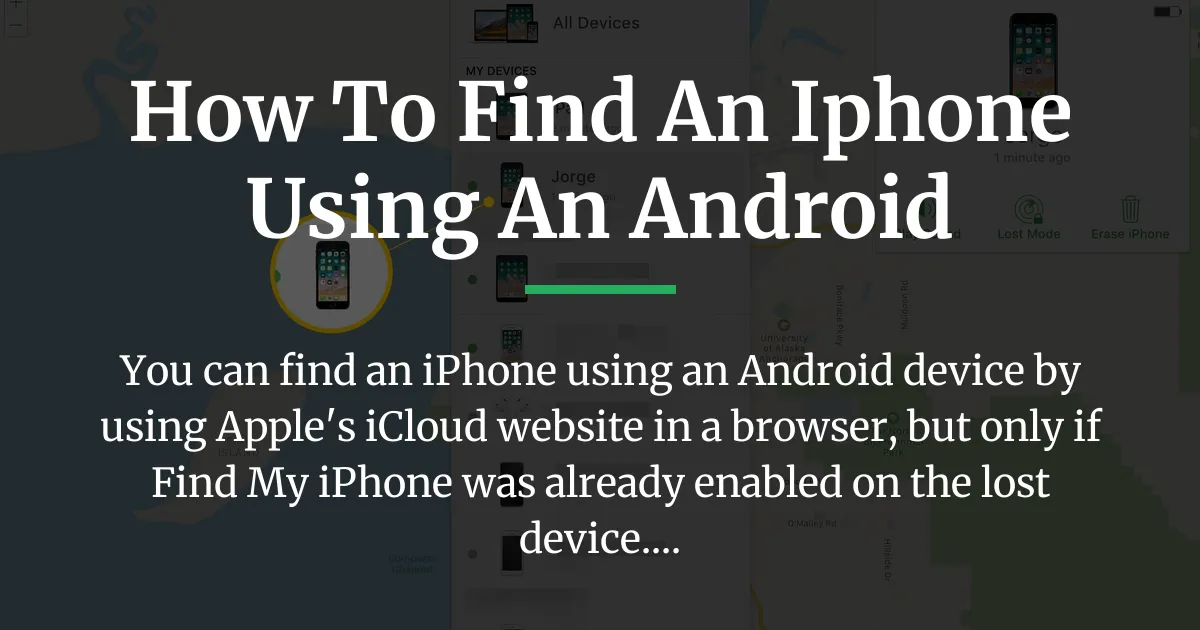
Yes, you can absolutely find an iPhone using an Android phone. The process hinges entirely on Apple’s own system, not a magical app that bridges the two platforms. Your primary tool will be a web browser on your Android device to access Apple’s iCloud service. Success, however, is not guaranteed and depends completely on how the lost iPhone was set up before it disappeared. This guide walks you through the exact steps, the critical setup most articles ignore, and what you can realistically achieve from the Android side of the fence.
The Essential Requirements to Find an iPhone
Before you type a single web address into your Android browser, understand this: the entire process fails if certain things were not done on the iPhone before it went missing. This is the most overlooked part of the search.
Find My iPhone must be turned on. This is the non-negotiable foundation. If this feature was disabled, Apple’s system cannot locate the device remotely. You often cannot enable it after the phone is lost. People usually check this when they first set up their iPhone, but it’s worth verifying with family members.
The lost iPhone needs some battery life and a connection. To show its current location, the phone must be powered on and connected to either cellular data or Wi-Fi. If the battery is dead or it’s in airplane mode, you will only see the last location it reported before going offline.
You must have the correct Apple ID and password. This is the most common hurdle. To use iCloud Find My, you need to log in with the exact Apple ID account that is signed into the lost iPhone. This is easy if it’s your own device but becomes complicated if you’re trying to locate a family member’s phone and don’t know their password.
A note on Location Services. For Find My iPhone to work precisely, Location Services must also be active. The good news is that turning on Find My iPhone typically requires this setting to be enabled, so they usually go hand in hand.
How to Find an iPhone Using an Android Browser
The core method for finding an iPhone from an Android device is using Apple’s iCloud website. This is the official, free way that Apple provides. The experience on an Android phone is a slightly adapted desktop version of the site.
Accessing iCloud.com on Android
Follow these steps carefully. The process requires switching your mobile browser to load the desktop version of the iCloud site to get all the features.
- Open a web browser like Chrome or Firefox on your Android phone.
- Go directly to the Find My iPhone page by typing in icloud.com/find.
- Tap the three-dot menu icon in your browser’s top or bottom corner.
- From the menu, look for and select the option that says “Desktop site” or “Request desktop site.” This step is crucial.
- You will now see the iCloud login screen. Enter the Apple ID email address and password associated with the lost iPhone.
- If you have two-factor authentication enabled (which you should), you will need to approve the login from another trusted Apple device or enter a verification code sent to a trusted phone number.
- After logging in, click on “All Devices” at the top of the screen. A list will appear showing all Apple devices linked to that Apple ID.
- Select the name of the lost iPhone from the list.
Understanding the iCloud.com Interface on Android
Once you select the device, a map will load showing the iPhone’s location. This is what you need to understand about what you’re seeing and what the buttons do.
The map shows a green dot if the phone is currently online. If it’s offline, the dot will be gray and display a timestamp like “Offline – 2 hours ago.” The location is generally accurate to a street level when online, but it is not the ultra-precise finding you get from an Apple device nearby.
You will see three main action buttons: Play Sound, Lost Mode, and Erase iPhone. These are powerful tools, but their function from an Android browser has limits.
Play Sound will instruct the iPhone to emit a loud, pinging sound for two minutes, even if it’s on silent. This only works if the phone is online. If it’s offline, the command will wait until it connects to the internet.
Lost Mode lets you lock the phone with a passcode (if it doesn’t have one), display a custom message with a phone number on the lock screen, and track its location. Again, this activates once the phone comes online.
Erase iPhone is the nuclear option. It will remotely wipe all personal data from the device to protect your information. Crucially, after you erase it, you can no longer track its location using Find My iPhone. Use this only as a last resort if you believe the phone is irretrievable.
Using Google Maps Location Sharing as an Alternative
Google Maps offers a different path, but it is not a solution for a sudden loss. It only works if it was planned in advance. This method requires that location sharing was already active between the lost iPhone and a Google account you can access on your Android.
To check, open the Google Maps app on your Android phone, tap your profile picture, and select “Location sharing.” If the person with the iPhone was sharing their location with your Google account, you will see their name and a live location on the map here.
The key difference is control. With Google Maps, you can only view the location. You cannot play a sound, lock the device, or erase it remotely. It’s purely for observation. Below is a clear comparison to help you understand which method applies to your situation.
| Feature | iCloud.com Method | Google Maps Method |
|---|---|---|
| Requires Pre-Setup | Find My iPhone must be ON. | Location Sharing must be ON in Google Maps. |
| Remote Actions | Play Sound, Activate Lost Mode, Erase Device. | View Location Only. No remote controls. |
| Primary Use | Finding a lost or stolen iPhone. | Ongoing, consensual location sharing with family or friends. |
| Best For | Emergency recovery of a missing device. | Knowing a family member’s general location during a trip. |
What You Can and Cannot Do From Your Android
Managing expectations is vital when you are using a different operating system to find a lost device. Your control and information are somewhat limited compared to using another Apple device like a Mac or iPad.
From your Android phone, you can view the iPhone’s last known location on a map. You can initiate the Play Sound, Lost Mode, and Erase commands. These commands will queue up and execute the next time the lost iPhone connects to the internet. You can also see the device’s battery level if it is online.
However, you likely cannot get real-time, foot-by-foot location updates. The precision finding technology that uses Ultra-Wideband (UWB) in newer iPhones is exclusive to the Apple ecosystem. You also cannot remotely lock the device instantly if it is currently offline; the lock command is pending.
The most critical part is what to do after you locate it on the map. If the phone appears to be in a public place like a cafe, you can go there and use the Play Sound function to help find it. If it appears to be in a private residence or moving, do not confront anyone. Your safest action is to note the exact address or location and provide this information to the police when you file a report. You should also contact your mobile carrier to suspend the line and prevent unauthorized use.
Addressing Common Problems and Limitations
Several frustrating scenarios can occur, and it’s best to know how the system reacts to them.
If the iPhone is offline, the iCloud map will display its last known location with a timestamp. The actions you select (Play Sound, Lost Mode) will be pending. The phone will receive these commands and act on them as soon as it connects to a network, even if it’s a different Wi-Fi. This is why enabling Lost Mode is still useful.
Many worry that using Find My will drain the lost iPhone’s battery. The location reporting is designed to be very efficient on battery. The far bigger drain would be if someone is actively using the phone. The system is optimized to preserve battery life while still providing location updates when possible.
Privacy is a major concern. Logging into someone’s Apple ID from an untrusted device (like an Android phone) can trigger security alerts. Always log out of iCloud.com on your Android browser once you are done searching. If you use two-factor authentication, which you should, this adds a critical layer of security by requiring a code from a trusted device or number to complete the login.
Frequently Asked Questions
Can I make a lost iPhone ring from my Android phone?
Yes, but only if the lost iPhone is online. Using the iCloud.com website on your Android browser, you can select the device and click “Play Sound.” This will force the iPhone to ring loudly for two minutes, even if the mute switch is on. If the phone is offline, the command will wait until it connects to the internet.
What should I do if I don’t know the Apple ID password for the lost iPhone?
This is a significant barrier. You cannot use Apple’s official iCloud method without these credentials. Your best options are to try and recover the password through Apple’s account recovery process if you have access to the account’s recovery email or phone number. If it’s a family member’s phone, you may need to ask them directly. For children’s devices, setting up Family Sharing beforehand is the proper solution.
Will this work if the lost iPhone is turned off or has a dead battery?
If the iPhone is completely off or has a dead battery, it cannot transmit its location. In iCloud Find My, you will see its last known location before it powered down. Some newer iPhone models with a certain version of iOS can still send a one-time location update when the battery is critically low, but this is not guaranteed.
Is using the ‘Find My’ app on an Apple device different from using iCloud.com on Android?
Yes, there are differences. The dedicated Find My app on an Apple device, like an iPad or Mac, is more integrated. It may offer slightly faster updates and access to features like direction guides. The iCloud.com website on Android provides all the core functions (map, sound, lock, erase) but through a web interface, which can feel less immediate.
Can I track my child’s iPhone from my Android without their password?
Not directly with their personal Apple ID password. The correct way to do this is to use Apple’s Family Sharing setup before the phone is lost. As the family organizer, you can invite your child’s Apple ID to your family group. Once set up, you can locate their device through the Find My app on another Apple device or via iCloud.com using your own Apple ID, without needing their password.
Are there any trustworthy third-party apps to find an iPhone from Android?
Be extremely cautious. Any app claiming to track an iPhone from an Android device without using iCloud credentials is likely misleading. To work, such an app would need to be installed on the iPhone beforehand, which defeats the purpose for a lost device. The only reliable methods are Apple’s official iCloud.com and pre-established Google Maps sharing.
Does using Google Maps to find an iPhone drain the iPhone’s battery?
Continuous location sharing in Google Maps can have a moderate impact on battery life, as the iPhone needs to periodically send its location to Google’s servers. This is different from Apple’s Find My network, which is optimized for efficiency. For ongoing sharing, it’s a trade-off between battery life and convenience.
What is the most accurate method for finding an iPhone’s location?
If the iPhone is online, both iCloud Find My and Google Maps provide similar street-level accuracy. For the absolute most precise location, especially indoors, using Apple’s own Find My app on another Apple device is best, as it can leverage Bluetooth and Ultra-Wideband technology in newer iPhones for pinpoint accuracy.
Can I erase a lost iPhone remotely from an Android device?
Yes, you can initiate a remote erase from the iCloud.com website on your Android. After selecting the lost device, click “Erase iPhone.” This will permanently delete all data and settings on the phone to protect your personal information. Remember, after erasing, you can no longer track the device’s location.
If I find the iPhone’s location, what is the safest next step to recover it?
Your safety is the priority. If the location is a public place you can quickly access, go there and use “Play Sound” to locate it. If the location is a private home, is moving, or seems unsafe, do not attempt to recover it yourself. Note the exact address, take a screenshot of the map, and provide this information to the police when you file an official report for a lost or stolen device.
Conclusion
Learning how to find an iPhone using an Android phone is a practical skill that revolves around preparation. The answer lies in using Apple’s iCloud website as a bridge between the two different worlds. The entire system’s effectiveness is determined by settings configured long before the phone goes missing. The key takeaway is not just the step-by-step guide but the urgent reminder to verify Find My iPhone is enabled on every Apple device you own and to discuss secure location-sharing plans with your family. When technology is set up correctly, it provides a powerful safety net, regardless of what type of phone you have in your hand to initiate the search.